


As you know, our online accounts are constantly at risk of being compromised. Relying on passwords alone is no longer enough to protect your personal information from hackers. 2FA (Two-Factor Authentication) is an additional layer of security that helps prevent unauthorized access, even if your password is leaked. So, what is 2FA, how does it work, and how can you enable it on popular platforms? Let's find out in this article!
What you need to know about 2FA codes
Securing online accounts is becoming increasingly important as cyberattacks become more common. One of the most effective ways to protect your account is by using 2FA (Two-Factor Authentication). What types of authentication are there? And what is 2FA? Let's join Markdao to explore the details in the next section.
Current types of Factor Authentication
Currently, there are three main forms of authentication used to protect online accounts:
1. Single-Factor Authentication (SFA)
This is the most basic security method, requiring only one factor to log in, which is usually a password. However, because passwords can be stolen or guessed through attacks, SFA is no longer considered a secure security solution.
2. Two-Factor Authentication (2FA)
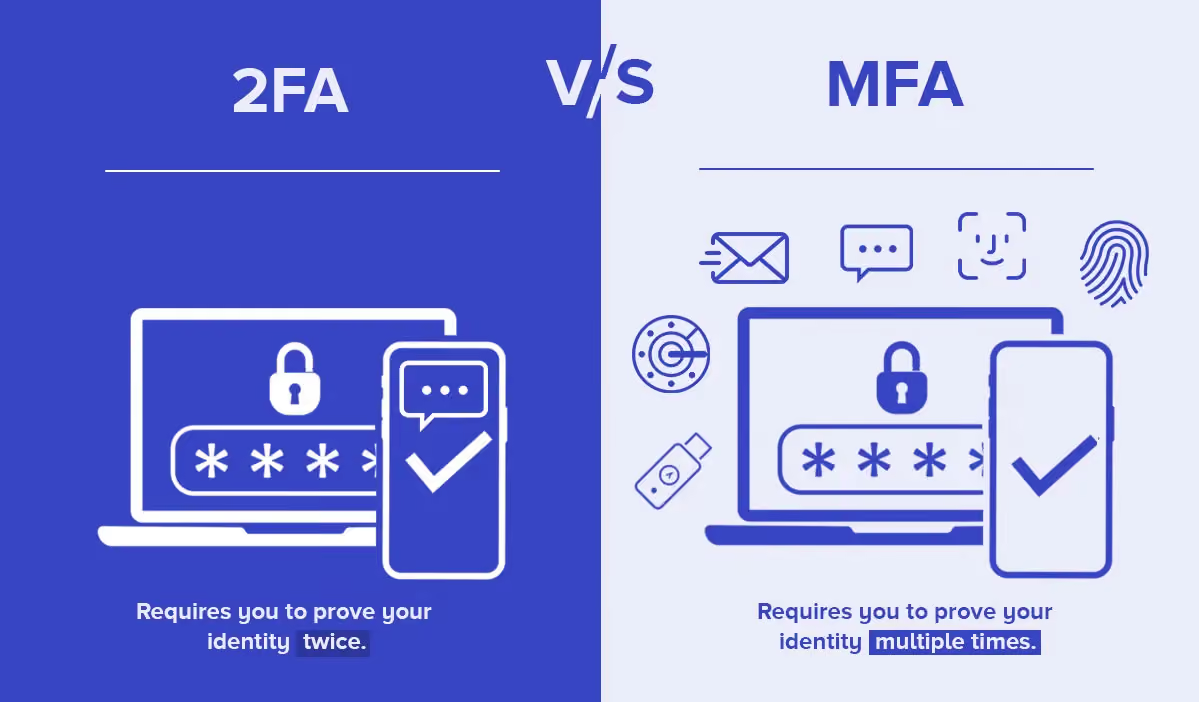
What is 2FA authentication? This is a security method that requires two different factors to verify a user's identity. For example, in addition to your password, you must also enter a 2FA code from an SMS or an authenticator app.
3. Multi-Factor Authentication (MFA)
MFA is a more advanced method than 2FA, requiring more than two authentication factors. For example, in addition to a password and an OTP code, users may need to authenticate using a fingerprint or a dedicated security device.
So, what is 2FA?
2FA (Two-Factor Authentication) or two-factor authentication is a security method that enhances account safety by requiring two different forms of verification.
The importance of 2FA security
- Reduces the risk of account theft: Even if your password is compromised, hackers cannot log in without the 2FA code.
- Protects personal and financial information: Bank accounts, emails, and social media profiles all require 2FA to prevent unauthorized access.
- Enhances security without complexity: Getting a 2FA code takes only a few seconds but can prevent significant attacks.
Common types of 2FA
1. OTP codes via SMS or email
Users receive an OTP (One-Time Password) via SMS or email. This is the most common method but is not perfectly secure, as it can be vulnerable to SIM swapping attacks.
2. Authenticator Apps
Apps like Google Authenticator, Microsoft Authenticator, and Authy generate 2FA codes without needing an internet connection. The codes update every 30 seconds, providing enhanced security.
3. Hardware Tokens
Some organizations use physical security devices like YubiKeys or security USBs to verify logins. This method is highly secure but less common due to the higher cost.
4. Biometric authentication
Fingerprints, facial recognition, or iris scans are forms of 2FA authentication that are modern and commonly integrated into smartphones and security devices.
How does 2FA work? Comparing 2FA and MFA
Two-factor authentication (2FA) is one of the most popular security methods today, helping to prevent unauthorized access to online accounts. So, how does 2FA work? What are its pros and cons? And how do you distinguish 2FA from multi-factor authentication (MFA)?
How 2FA works
A 2FA authentication system works by requiring users to provide two different factors to verify their identity when logging into an account. The three main factors in the authentication process include:
Three main authentication factors
- Knowledge Factor: Information that only the user knows, such as a password, PIN, or security question. This is the most basic layer of security but is vulnerable if a hacker steals the information.
- Possession Factor: A device or item that the user possesses, such as a phone that receives OTP codes, a security token, or an authentication USB.
- Inherence Factor: The user's biometric characteristics, such as fingerprints, facial recognition, or iris scans.
How to combine factors in 2FA
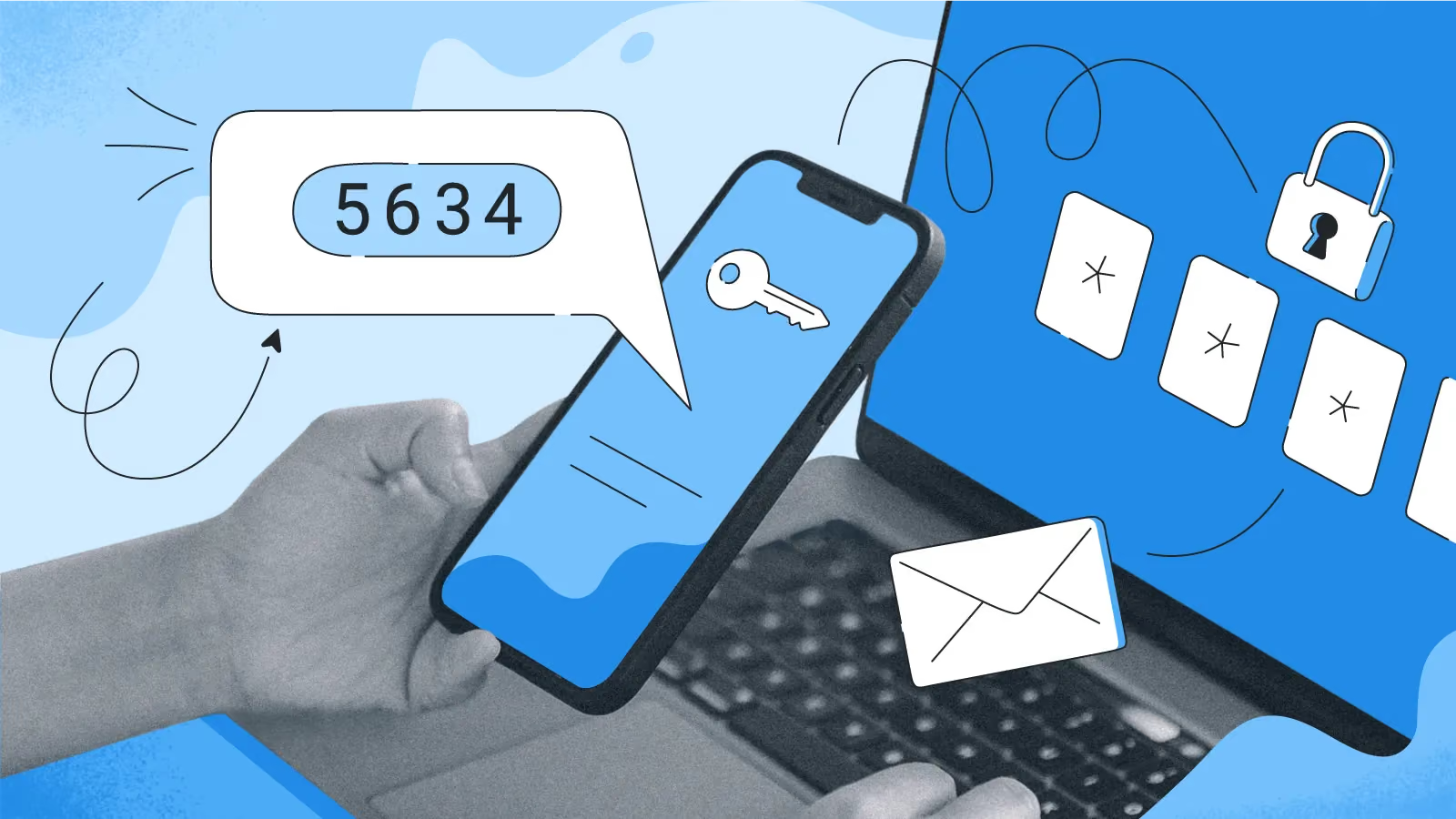
2FA requires at least two of the three factors above to verify identity. For example:
- Enter password (knowledge factor) + enter OTP code from your phone (possession factor).
- Scan fingerprint (inherence factor) + use authentication code from Google Authenticator (possession factor).
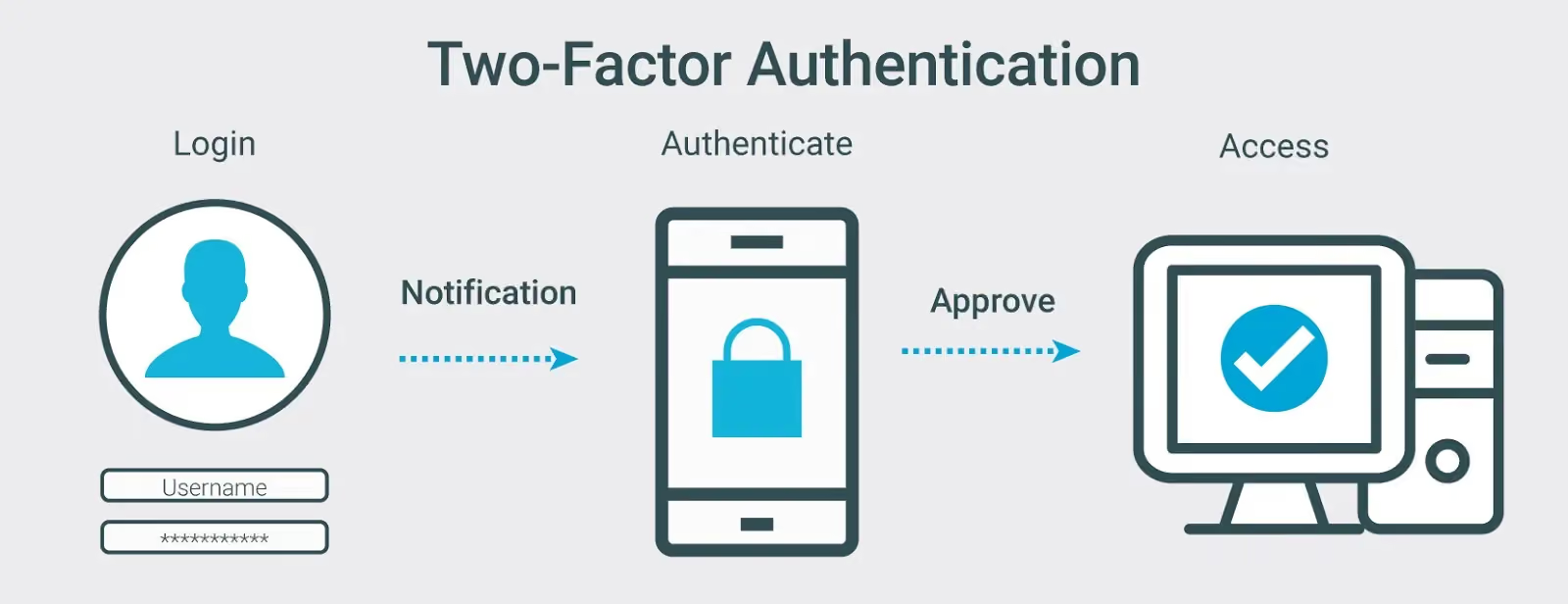
Example of the 2FA process
When you log in to your online banking account:
- Enter your username and password.
- The system requests an OTP code sent via SMS or an authentication app.
- Only after entering the correct code can you access your account.
Thanks to 2FA, even if a hacker knows your password, they cannot log in without the authentication code from your device.
Pros and cons of 2FA
Pros of 2FA
- Enhanced account security: Protects accounts against password theft attacks, helping to limit the risk of unauthorized access.
- Reduced risk of brute-force attacks: Even if a hacker obtains your password, they still need the second authentication factor to log in.
- Increased flexibility and productivity in business: Organizations can use 2FA codes to control access to internal systems and protect sensitive data.
Cons of 2FA
- Difficulties in implementation and management: Some businesses face challenges when implementing 2FA, especially with users who are not tech-savvy.
- Impact on user experience: Users have to perform an additional authentication step, which can be inconvenient during login.
- Risks of losing the possession factor: If a phone or authentication device is lost, users may struggle to regain access to their accounts.
Comparing 2FA and MFA
Understanding what 2FA is, how it works, and its benefits helps users and businesses apply this method to enhance security. Additionally, distinguishing between 2FA and MFA helps you choose the right solution for your account protection needs.
So, when should you use 2FA and when should you use MFA?
- Use 2FA when you need to protect personal accounts like email, social media, or banking apps without wanting an overly complex authentication process.
- Use MFA when you need to protect enterprise systems, sensitive data, or high-risk accounts that require maximum security.
Guide to enabling 2FA on 3 popular platforms
Two-factor authentication (2FA) is one of the best ways to protect online accounts from the risk of information theft. When 2FA is enabled, even if an attacker knows your password, they cannot access your account without the second authentication code. Below is a detailed guide on how to enable 2FA on popular platforms such as Google, Facebook, Instagram
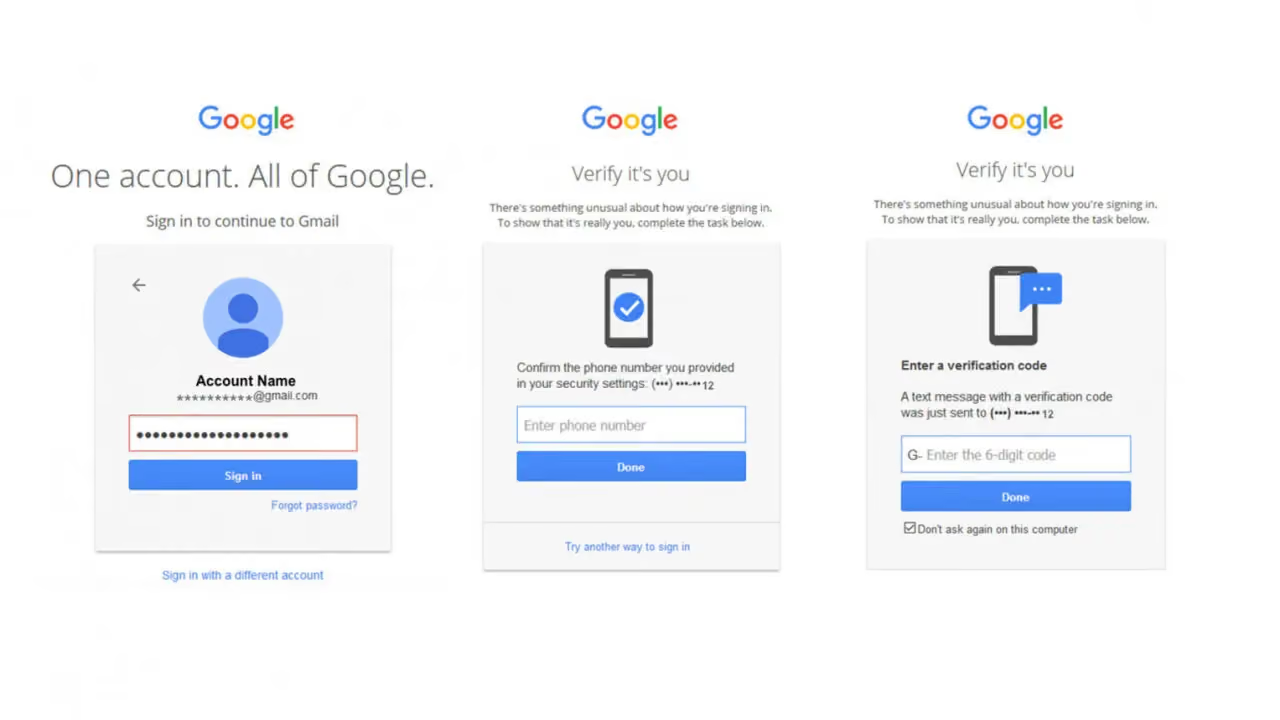
1. How to enable 2FA on Google
Google offers 2FA security to help protect your Gmail, Google Drive, and other Google services.
Step 1: Access security settings
- Go to Google My Account.
- Select Security > 2-Step Verification > Get started.
Step 2: Choose an authentication method
Google provides several authentication methods, including:
- OTP codes via SMS.
- Google Authenticator or Authy apps.
- Physical security keys like a security USB.
Step 3: Confirm and finish
- Enter the verification code to complete the setup process.
- Enable backup codes to use when you cannot access your primary authentication method.
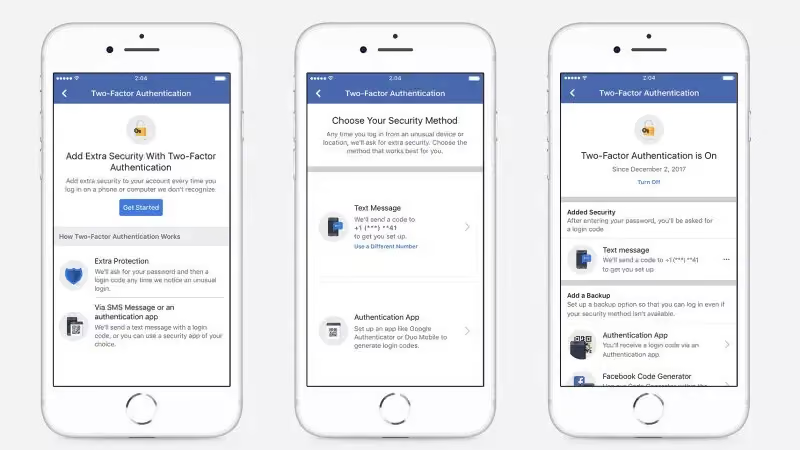
2. How to enable 2FA on Facebook
2FA Authentication help protect your Facebook account from being hacked if your password is compromised.
Step 1: Access security settings
- Open Facebook and go to Settings & Privacy.
- Select Settings > Security and login.
Step 2: Enable two-factor authentication
- Scroll down to the Two-factor authentication section and click Edit.
Choose an authentication method:
- OTP code via SMS.
- Authentication app (Google Authenticator, Duo Mobile, Authy).
Step 3: Enter the verification code
- Facebook will send a verification code to your chosen method.
- Enter the code to complete the activation process.
3. How to enable 2FA on Instagram
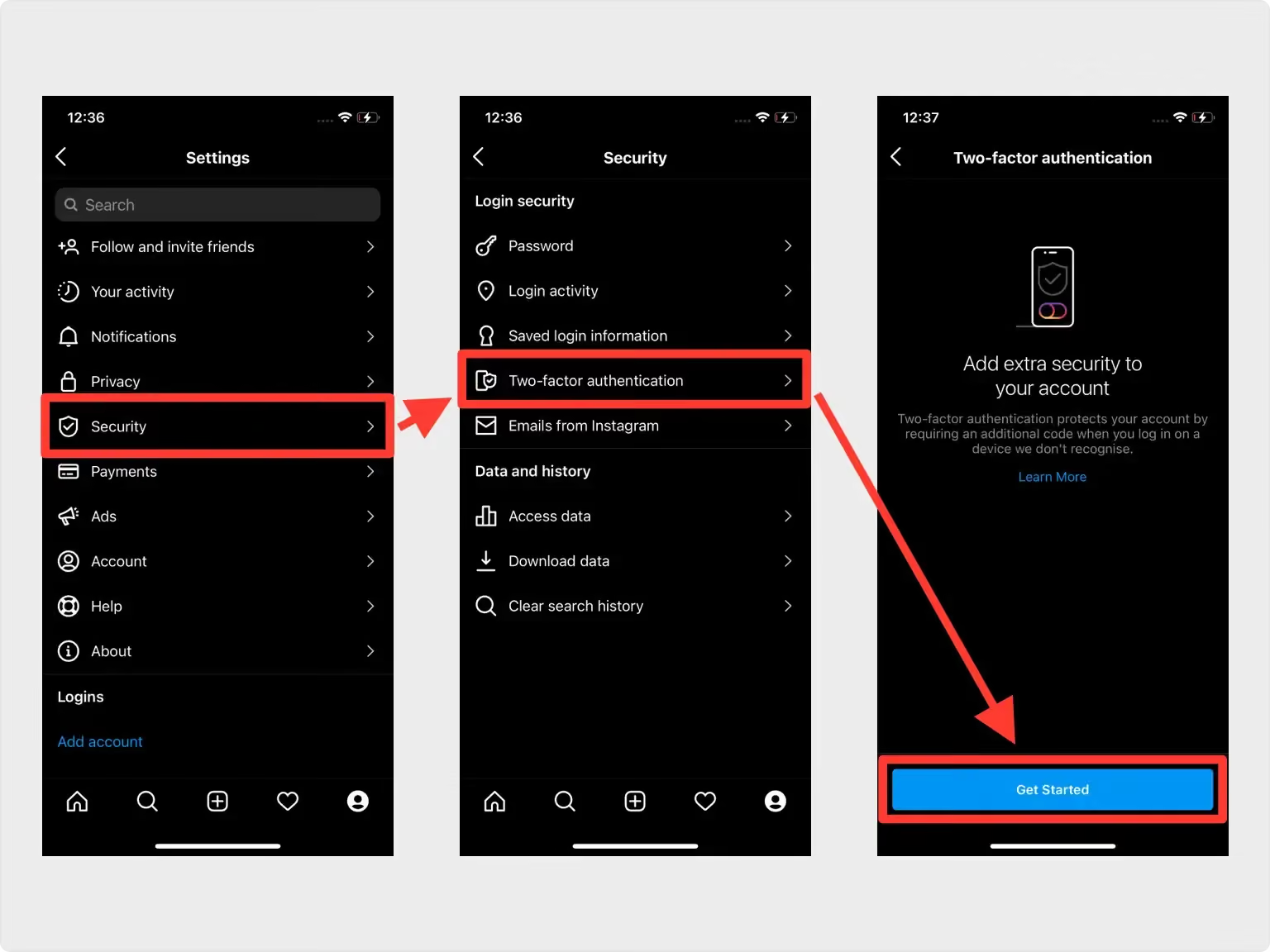
Security 2FA code on Instagram helps prevent unauthorized access to personal or business accounts.
Step 1: Open security settings
- Go to Instagram > Tap your profile picture to open Settings.
- Select Security > Two-Factor Authentication.
Step 2: Choose an authentication method
Select Text message (SMS) or Authentication app.
Step 3: Enter the verification code and finish
- Enter the OTP code sent via SMS or the app.
- Receive and save your backup codes to recover your account when needed.
Be proactive and turn on 2FA for your social media accounts today to minimize the risk of cyberattacks.
Important notes about 2FA
1. Is 2FA actually secure?
Two-factor authentication (2FA) is one of the best security measures available today, helping to protect accounts from the risk of password theft. However, it is not completely immune to cyberattacks. Some risks can occur when using 2FA:
- Phishing: Attackers can spoof login pages to steal both your password and your OTP code.
- SIM Swap attacks: If you use SMS-based OTPs, hackers can hijack your phone number and receive the codes in your place.
- Compromised authentication devices: If you use an authenticator app on your phone but the device is infected with malware, attackers may still be able to steal your codes.
How to enhance security when using 2FA:
- Prioritize using an authenticator app instead of SMS.
- Enable physical security keys (like YubiKey or Google Titan) if possible.
- Always be wary of suspicious emails or messages requesting your OTP code.
2. What to do if you lose access to your second factor?
If you cannot access your second authentication method (due to a lost phone, locked SIM, or broken security device), you can try the following solutions:
- Use backup codes
Most platforms, when setting up 2FA , will provide backup codes. These are one-time codes used to log in when you cannot use your primary authentication method. Keep these codes in a safe place (e.g., written in a notebook or stored in a password manager).
- Use a previously logged-in device
If you have previously logged in on another device and have not been logged out, try accessing security settings to disable 2FA or change your authentication method.
3. Should you use 2FA for all accounts?
The answer is YES. 2FA should be enabled for every important account, especially:
- Primary email (Gmail, Outlook) – If compromised, an attacker could reset the passwords for all linked accounts.
- Bank and e-wallet accounts (Momo, ViettelPay, PayPal, Zalopay) – Helps protect your money and transaction information.
- Social media (Facebook, Instagram, Twitter, TikTok) – Prevents hackers from using your account for scams.
- Cloud storage services (Google Drive, Dropbox, OneDrive) – Protects your personal and work data.
- Business accounts (Lark, Zoom, Microsoft Teams) – Ensures internal information is not leaked.
However, if you have too many accounts and cannot enable 2FA for all of them, prioritize accounts containing sensitive information. Don't forget to save your backup codes and ensure you have a way to recover your account if you lose access to your second authentication factor.
Conclusion
What is 2FA? Enabling 2FA is one of the simplest yet most effective ways to protect your online accounts from cyber threats. While there are some drawbacks, such as the inconvenience of losing access to your authentication device, the security benefits that 2FA provides are undeniable.
To ensure maximum security, you should enable 2FA for important accounts like email, social media, and banking, and use an appropriate authentication method. Don't wait until you've been hacked to think about protecting your account—set up 2FA today!