



Check website indexing is a crucial step in SEO, helping you determine whether the pages on your website have been indexed by Google. If a webpage is not indexed, your content will not appear in search results, which reduces traffic and negatively impacts your SEO rankings.
So, how can you check website indexing quickly and accurately? In this article, Markdao will guide you through 5 effective methods to help you check and ensure your website is properly indexed by Google.
What is Website Indexing? The Role of Checking Website Indexing
Definition of Website Indexing
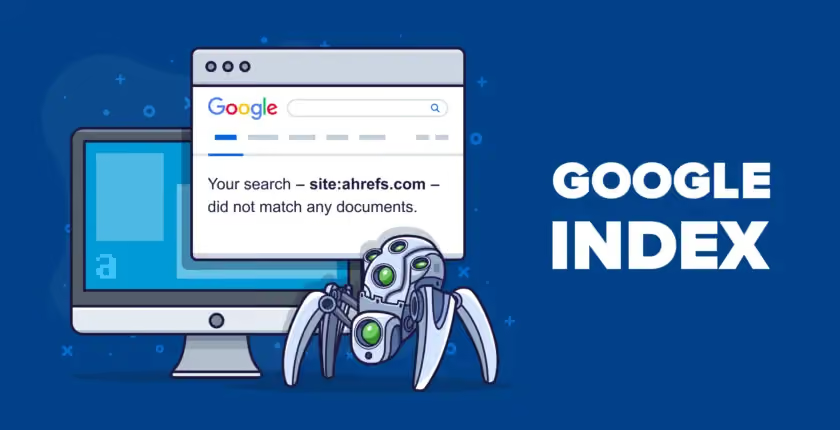
Website indexing is the process by which Google and other search engines crawl, analyze, and store the content of a website in their databases. Once a page is indexed, it has the opportunity to appear in search results when users enter relevant queries.
To index a website on Google, Googlebot (Google's search bot) crawls the site and then proceeds to index it if the page's content meets the necessary criteria. If a webpage is not indexed, it will not appear on Google, and users will be unable to find that page through search.
Benefits of regularly checking website indexing
Regularly checking website indexing is essential, especially for SEO professionals, web administrators, or business owners looking to optimize their Google rankings. Below are the main benefits of checking Google website indexing frequently:
1. Ensures your website is indexed by Google
- If Google has not indexed an important page, you can take steps to help index the website faster.
- Avoid missing out on opportunities to reach customers because your website does not appear in search results.
2. Detect technical errors affecting website indexing
- Some pages may be overlooked by Google due to errors robots.txt, meta noindex, or 404 errors.
- Checking your index helps you detect and fix errors early, ensuring your entire website is indexed correctly.
3. Improve SEO rankings and increase traffic
- Pages that are indexed quickly are more likely to appear on SERPs sooner, giving you a competitive advantage.
- Optimizing indexing speed also helps Google recognize new content faster, which is especially important for news sites and blogs.
4. Support your content optimization strategy
- When checking your website's index, you can identify which pages are indexed and which are not, allowing you to optimize your site structure and SEO strategy accordingly.
- If important content is not indexed, you can use Google Search Console to submit an indexing request.
5. Evaluate the effectiveness of your SEO and backlink strategy
- If a page has strong backlinks but is not indexed, the value of those backlinks will not be fully utilized.
- Checking your index helps you evaluate the effectiveness of your internal linking and external backlink building.
Checking your website's Google index is a crucial step in monitoring your site's status, ensuring content is properly indexed and SEO performance is optimized. In the following sections, we will explore the fastest and most effective ways to check your website's index.
5 fast and accurate methods to check your website's index
Checking your website's index status is a crucial step for administrators to determine whether Google has indexed their site. Here are 5 ways to check website index status quickly and accurately that you can apply.
Use the "site:" command on Google
One of the simplest ways to check your website index is to use the "site:" search command on Google.
Instructions
- Open Google and enter the following syntax: site:yourwebsite.com
- If you want to check a specific URL, enter: site:yourwebsite.com/page-url
- Google will display a list of pages from your website that have been indexed.
How to check the number of indexed pages
- If multiple pages appear, it means your website has been indexed by Google.
- If there are no results, the site may not be indexed or could be blocked by robots.txt or a meta noindex tag.
Pros
- Quick to check, no external tools required.
- No Google account login required.
Cons
- It does not provide detailed information such as index dates or indexing errors.
- It is unable to check the reasons why a page has not been indexed.
Check in Google Search Console
Google Search Console is Google's official tool that helps administrators monitor the status of website indexing on Google and detect errors that may affect indexing.
Instructions for accessing Google Search Console
- Access Google Search Console at: https://search.google.com/search-console
- Select the website you want to check.
Use the "Coverage" feature to see the number of indexed pages
- In Google Search Console, select Coverage .
- Google will display a list of pages that have been indexed, pages with errors, and pages excluded from the index.
Use "URL Inspection" to check the index status of a specific URL
- Enter the URL you want to check into the "URL Inspection" box (URL Inspection).
- If the page has been indexed, Google will display detailed information.
- If the page has not been indexed, you can submit a manual indexing request.
Pros
- Provides accurate data directly from Google.
- Helps identify indexing errors and suggests fixes.
Cons
- Requires connecting your website to Google Search Console.
- Cannot check multiple URLs at once.
Using online website index checker tools
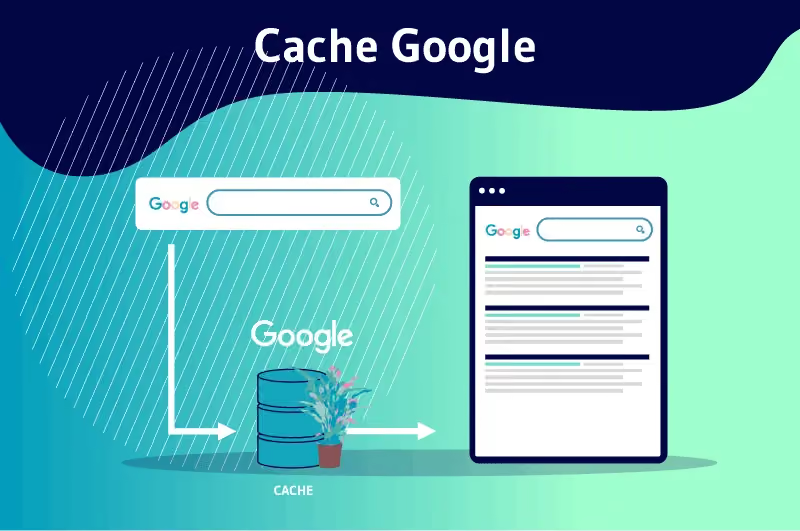
Besides Google Search Console, you can use Google website index checker tools for free to check the indexing status of your website.
Some popular tools
Small SEO Tools – Google Index Checker: https://smallseotools.com/google-index-checker/
SEO Review Tools – Google Index Checker: https://www.seoreviewtools.com/google-index-checker/
Prepostseo – Google Index Checker: https://www.prepostseo.com/google-index-checker
How to use
- Access one of the tools above.
- Enter the URL you want to check.
- Click "Check" and wait for the results.
Pros
- No Google account login required.
- Can check multiple URLs at once.
Cons
- Results may not be 100% accurate.
- Does not show the reason why a page is not indexed.

Checking Website Indexing via Google Cache
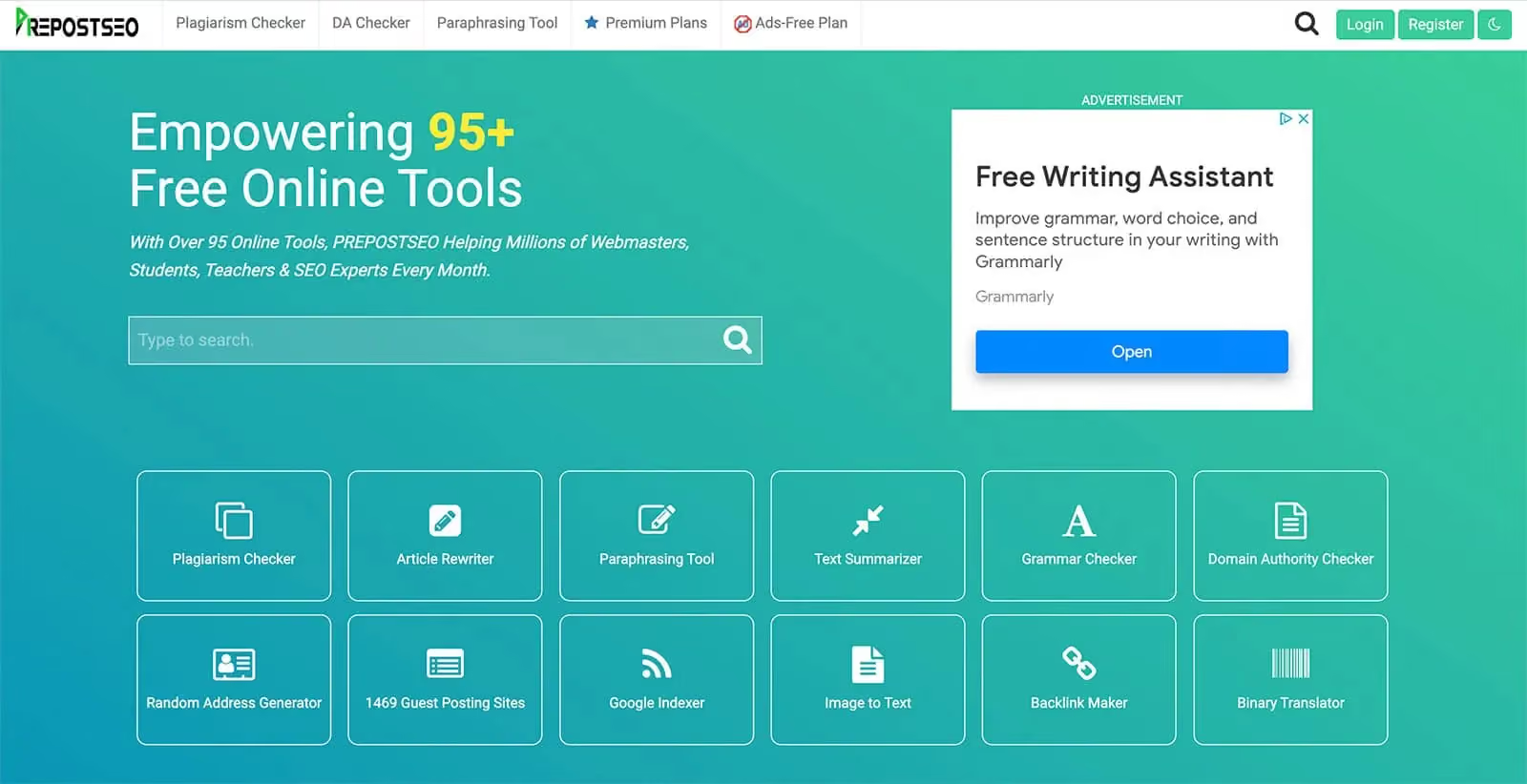
Google Cache helps you check which version of a webpage Google most recently stored. If a page has a cache, it means Google has crawled and indexed that page.
How to use the Google Cache search command
- Open Google and enter the following syntax: cache:yourwebsite.com
- If the page has been indexed, you will see the most recent cached version along with the date and time Google stored the page.
- If there is no cache, the page may not be indexed or may have been removed from the index.
Understanding the results
- Cached: The page has been indexed.
- Not cached: The page has not been indexed or has been removed from Google's index.
Pros
- Quick check, no additional tools required.
- Helps identify the most recent version Google has saved.
Cons
- Not applicable to all pages.
- Does not display the reason if a page is not indexed.
Using the Google Indexing API
The Google Indexing API is an advanced method for checking and requesting that Google index your website quickly. The Google Indexing API allows you to send indexing requests directly to Google, which speeds up the indexing process—this is especially useful for websites with dynamic content such as news or events.
Guide to checking index status using the API
- Set up the Google Indexing API according to the Google Developers documentation.
- Use the API to check the index status or submit an indexing request for a specific page.
When should you use the API?
- Websites with frequently changing content (news, events).
- Important pages that need to be indexed quickly.
Pros
- Quickly check and submit indexing requests.
- Suitable for news and e-commerce websites.
Cons
- Requires complex technical setup.
- Only applicable to certain types of content.
Checking your website's index status is a crucial step to ensure your pages are indexed by Google. Depending on your needs, you can choose one of the following methods:
- Using the "site:" command on Google: Fast, no tools required.
- Checking in Google Search Console: Accurate, provides detailed data.
- Using online website index checker tools: Checks multiple URLs at once.
- Checking Google Cache: Confirms the stored version.
- Using the Google Indexing API: Suitable for news websites and dynamic content.
If you discover that your website is not indexed, take optimization measures to guide Google to index your site quickly, helping your content appear in search results and improving SEO performance.
Notes on checking website index status
How to handle unindexed pages
If you check your website index and find that pages are not indexed, you need to take steps to resolve the issue. First, identify the cause by checking Google Search Console and using support tools. Below are some solutions to help your website get indexed faster.
Check robots.txt and noindex meta tags
One of the most common reasons Google doesn't index a website is because the robots.txt file or a noindex meta tag is blocking search bots.
- Visit yourwebsite.com/robots.txt to check if any lines are blocking Googlebot. If you see a Disallow: / line, this may be preventing your site from being indexed.
- Check the page source code and look for the <meta name="robots" content="noindex, nofollow"> tag. If it exists, remove it or change it to <meta name="robots" content="index, follow"> to allow Google to index your website.
After making these changes, you can use Google Search Console to request that Google recrawl your site.
Optimize page load speed and content quality
Google prioritizes indexing websites with valuable content and fast load speeds. If your site loads slowly or contains duplicate content, Google may not prioritize it for indexing. To optimize:
- Use the Google PageSpeed Insights tool to check your page load speed and optimize images, CSS, and JavaScript.
- Write fresh, unique, and valuable content for users instead of using duplicate or low-quality content.
- Update your sitemap.xml and resubmit it to Google to help search bots easily discover new pages.
Use Google Search Console to request indexing
Google Search Console provides tools to help you request website indexing quickly. If you have just updated content or fixed indexing errors, follow these steps:
- Access Google Search Console and log in to your website administrator account.
- Enter the URL of the page you want to check into the search bar to see its index status.
- If the page is not indexed, select "Request Indexing" to send a request to Google.
The process of indexing a website on Google can take anywhere from a few hours to a few days, depending on Googlebot's priority.
How often should you check your website's index status?
Checking your website's index status periodically helps you monitor SEO performance and quickly detect errors. The frequency of checks can depend on your type of website:
- For news or e-commerce websites, you should check weekly to ensure new pages are indexed in a timely manner.
- For business websites or blogs that are updated less frequently, you can check once a month to assess the indexing status.
You can use Google Search Console or Google website index checking tools to monitor your index status automatically.
Common reasons why a website is not indexed
If Google still hasn't indexed your website after multiple requests, check for the following causes:
- The page is blocked by robots.txt or a meta noindex tag – As mentioned, this is the most common error that prevents Google from indexing a page.
- The page has low-quality or duplicate content – Google may ignore a page if the content does not provide value to users.
- The website has 404 or server (5xx) errors – If a page is broken, Googlebot cannot crawl it to index it.
- The new website lacks sufficient SEO signals – If a website is too new, it may take some time for Google to index it.
- No backlinks or internal links pointing to the page – If a page has no incoming links, Google may find it difficult to discover and index it.
To ensure your website is indexed quickly and accurately, regularly check your website's index status using appropriate tools and implement effective optimization methods.
Conclusion
Regularly checking your website's index status helps you monitor its indexing health and quickly detect errors that impact SEO. Using methods such as the "site:" command, Google Search Console, online checking tools, Google Cache, and the Google Indexing API will help you accurately assess your website's index status. If you discover that a page has not been indexed, take the necessary optimization steps to get your website indexed on Google faster. Don't forget to perform periodic checks to ensure your website always performs well on search engines.