


In the competitive world of SEO, creating and submitting a sitemap for your WordPress site is like installing signposts in a vast forest—it helps Google navigate every corner of your website without getting lost. Whether you are a seasoned developer or just starting out in the WordPress world, this process is not only simple but also offers significant benefits for improving your search engine rankings.
From creating a sitemap via a plugin to submitting it to Google Search Console, everything will be Markdao explained clearly in this article. Ready to make Google "love" your website more?
Types of Sitemaps for WordPress Websites
A sitemap is an indispensable part of SEO optimization, especially when it comes to submitting a sitemap to Google. With a WordPress site, you can leverage various types of sitemaps to ensure Google fully indexes your important content. Below are the common types of sitemaps and their roles:
XML Sitemap
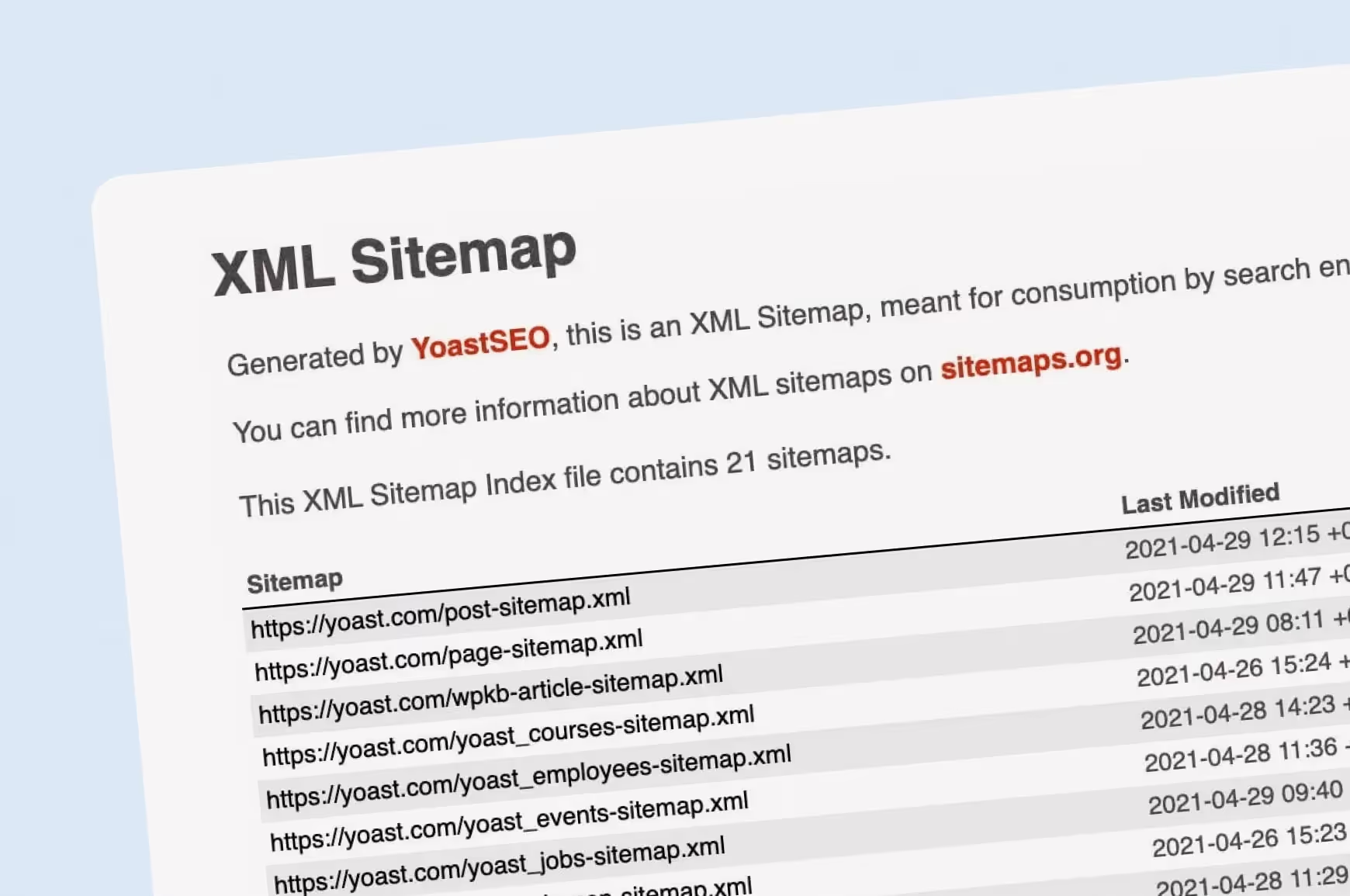
An XML Sitemap is the most common type of sitemap, specifically designed to help search engines like Google understand your website's structure. This type of sitemap includes a list of pages, posts, images, and videos on your site. When you submit a sitemap to Google, the XML Sitemap helps optimize indexing, ensuring that no content is overlooked.
HTML Sitemap
Unlike an XML Sitemap, an HTML Sitemap is designed primarily for users. It is a page on your website that lists all the main links, making it easy for visitors to navigate and find information. An HTML Sitemap not only improves user experience but also indirectly assists Google with indexing.
Video/Image Sitemap
For websites with a lot of image or video content, a Video/Image Sitemap is an optimal solution. This type of sitemap provides detailed information about the videos or images on your site, helping Google better understand and display this content in search results. This is especially important if you want your multimedia content to stand out in search engines.

The Dynamic Nature of Sitemaps in WordPress
A major advantage of WordPress is its ability to automatically update your sitemap. When you add or edit content on your website, tools like Yoast SEO will automatically update your sitemap without requiring manual intervention. This ensures that sitemap submission is always maintained accurately and promptly.
For example:
- When you add a new post, the post URL is automatically added to the XML sitemap at: https://www.example.com/sitemap.xml.
- Without any manual effort, WordPress ensures your sitemap stays in sync with your website's current content.
Choosing the right type of sitemap and using it correctly will help you maximize your SEO effectiveness while making it easier for Google to index the content on your WordPress site.
How to Create a Sitemap for a WordPress Website
To optimize SEO and ensure search engines like Google can easily index your content, creating a sitemap is an essential step. WordPress offers various ways to create a sitemap, ranging from using plugins to manual creation. Here is a detailed guide for you:
Install the Yoast SEO Plugin
Yoast SEO is one of the most popular plugins for WordPress, allowing you to create a sitemap easily and have it update automatically whenever your content changes.
Installation Guide:
- Go to your WordPress Dashboard > Plugins > Add New.
- Search for "Yoast SEO" and click Install > Activate.
Enable sitemap generation:
- After installation, go to SEO > General > Features.
- Ensure the "XML sitemaps" option is toggled on.
Configure sitemap in Yoast SEO:
- Go to SEO > General > Features > See the XML sitemap.
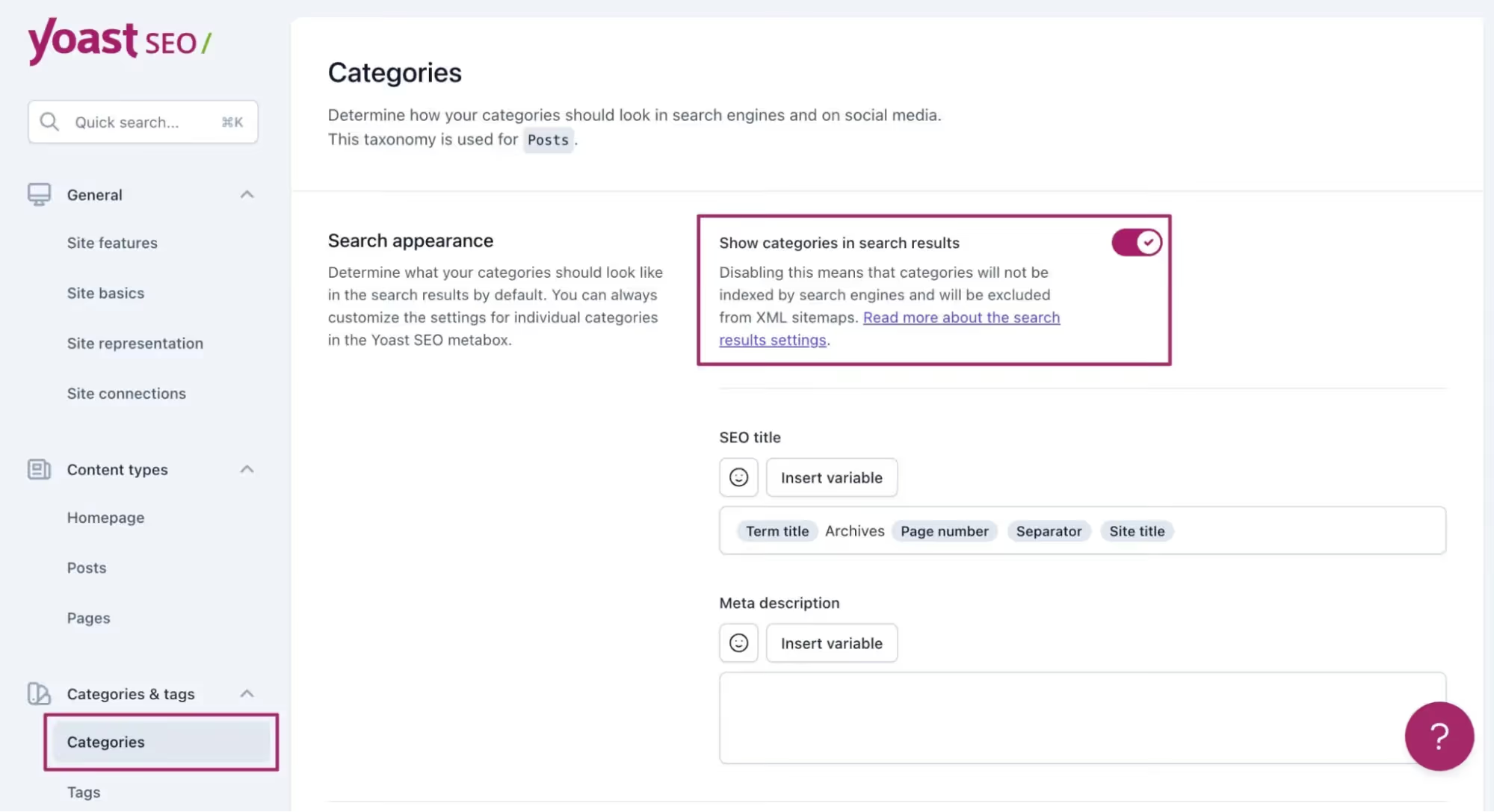
- Customize the content types to include in your sitemap under SEO > Search Appearance.
- Your sitemap URL will typically be: https://www.example.com/sitemap_index.xml.
Install the Google XML Sitemaps Plugin
Google XML Sitemaps is a dedicated plugin for generating XML sitemaps for WordPress that is both user-friendly and effective.
Installation guide:
- Go to WordPress Dashboard > Plugins > Add New.
- Search for "Google XML Sitemaps" and click Settings > Activation.
Configure and generate sitemap:
- Once installed, the plugin will automatically generate a sitemap.
- The sitemap URL is typically: https://www.example.com/sitemap.xml.
- To customize, go to Settings > XML-Sitemap, where you can select which pages or posts will appear in the sitemap.
Manual Sitemap Generation (if not using a plugin)
If you prefer not to use a plugin, you can create a sitemap manually using external tools.
Guide to manual sitemap generation:
- Use a free tool such as XML-Sitemaps.com.
- Enter your website URL and the tool will automatically generate a sitemap file.
Upload to website:
- Upload file sitemap.xml to your computer.
- Use a file manager or FTP to upload this file to your website's root directory (public_html).
→ If your website content is updated frequently, it is recommended to use a plugin like Yoast SEO or Google XML Sitemaps to automate the process.
→ If you prefer full control or only need to generate a sitemap once, the manual method is more suitable.
4 steps to submit your Sitemap to Google Search Console
Submitting your sitemap to Google Search Console is a crucial step to help Google easily understand and index the content on your website. Below is a detailed guide to help you complete this process effectively.
Step 1: Access Google Search Console
- First, log in to your Google Search Console account at https://search.google.com/search-console/welcome
- From the main dashboard, select the website you want to submit a sitemap for. If you haven't added your website yet, you will need to verify ownership before proceeding with the next steps.

Step 2: Submit Sitemap
- Go to the Sitemaps in the left-hand menu.
- Enter the URL of your sitemap file in the empty field, for example:
https://www.yourwebsite.com/sitemap.xml
- Click Submit to finish.
- After submitting, Google will display a "Processing" status. You can check back in a few minutes to see if the sitemap has been successfully received and indexed.

Step 3: Check and monitor results
Once you have submitted your sitemap, you can monitor Google's crawling and indexing progress in Google Search Console:
- Check the number of URLs submitted and indexed.
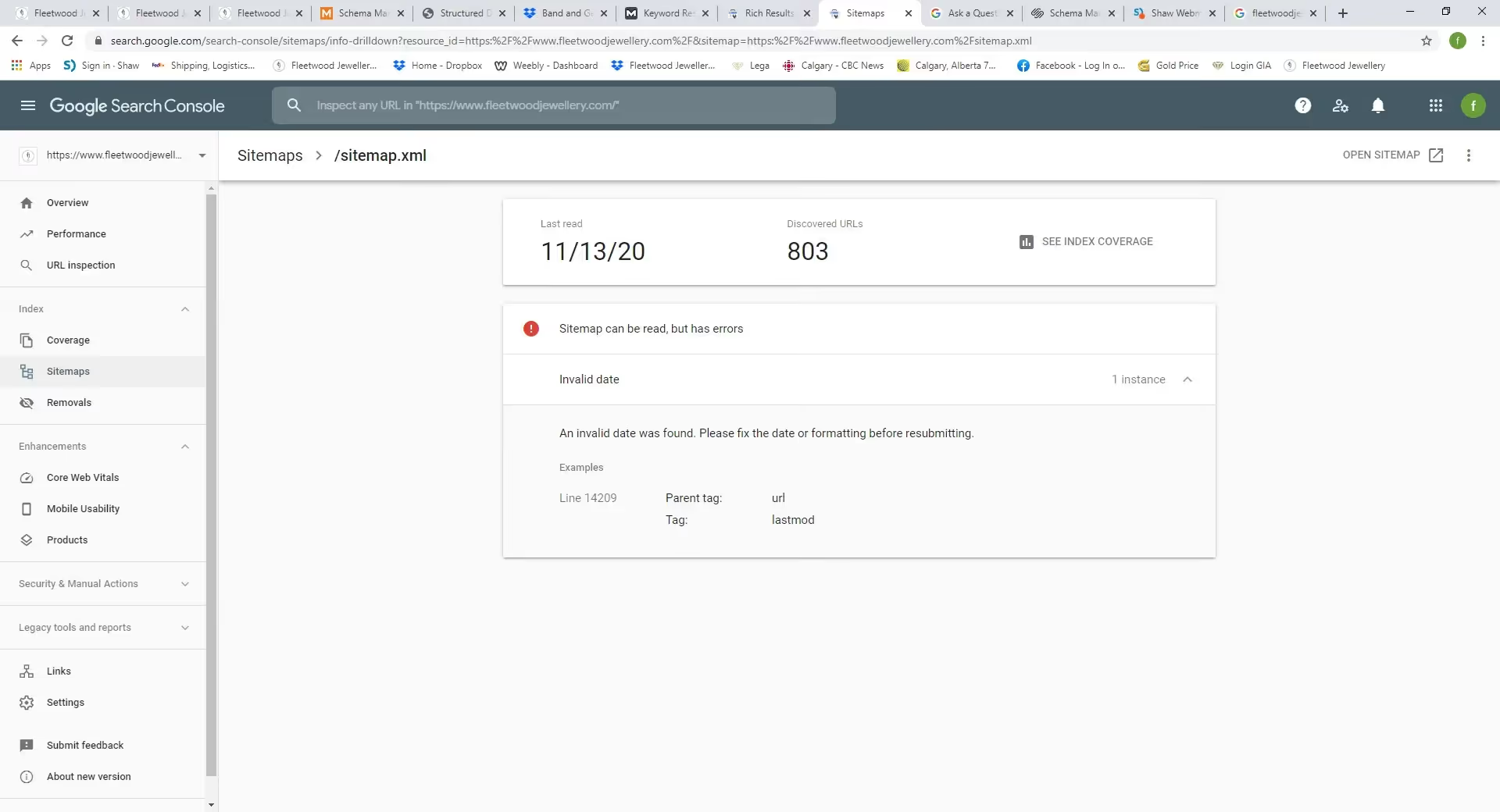
- Monitor error reports (if any) in the Sitemapssection.
If errors are detected, fix them and resubmit the sitemap to ensure your content is fully indexed.

Step 4: Update and maintain your Sitemap
- Update when content changes: When your website structure changes or new content is added, ensure the sitemap is updated as well. If you are using a plugin like Yoast SEO, the sitemap will update automatically and does not need to be resubmitted.
- Periodic checks: Periodically check the Sitemaps section in Google Search Console to ensure your sitemap has no issues, such as broken URLs or blocks by the robots.txt file.
Properly submitting your sitemap not only helps Google index your content faster but also allows you to track SEO performance, ultimately improving your website's search engine rankings.
Important notes for submitting a sitemap for a WordPress website
Automatic sitemap updates: WordPress plugins like Yoast SEO automatically update your sitemap whenever new posts, pages, or content are added.
Check for sitemap errors:
- Ensure your sitemap does not contain broken links (404s) or unnecessary pages.
- Check your sitemap in Google Search Console to identify and fix any errors.

Exclude unnecessary pages: Learn how to exclude pages like login pages, search results, or other non-essential content from your sitemap to optimize crawling.
Conclusion
And that concludes our journey from creating to submitting a sitemap for your WordPress website. With tools like Yoast SEO or Google XML Sitemaps, creating a sitemap is as easy as brewing a morning cup of coffee. Google Search Console is the gateway to submitting that "map," helping Google better understand your content.
Remember, keeping your sitemap updated and checking it regularly not only keeps your website fresh in Google's eyes but also ensures you don't miss any opportunities to boost your SEO performance. So, don't let your website get lost in the internet maze—let your sitemap lead the way!