


Localhost is a familiar term in the world of programming and system administration. It plays a crucial role in developing and testing web applications directly on your personal computer before deploying them to a live server. So, what is localhost, how does it work, and what is the simplest way to set it up? Let's join Markdao to explore the details in the article below!
What is Localhost?
1. Definition of Localhost
Localhost is a term combined from two words: "local" meaning the local, personal computer, and "host" meaning a server. When combined, localhost is understood as a server running directly on your personal computer, helping you connect to and test web applications without needing to deploy them on an actual server.
Localhost is a term referring to the use of a special network address to access services or applications running on your own computer. The default address for localhost is 127.0.0.1, known as the loopbackaddress, which means that requests are routed back to the local computer without passing through an external network.

To put it simply, localhost acts as a local web server, including components such as PHP, phpMyAdmin, MySQL, and Apache. This allows you to run web applications, develop websites, and test features without needing an external server or an internet connection.
2. What is localhost used for?
Localhost is widely used in the development and testing of web applications. Specifically, it helps to:
- Run and test web applications locally: You can build and run websites and applications directly on your computer without needing to rent hosting or purchase a domain name.
- Set up a virtual server: Localhost acts as a simulated server environment, allowing you to develop, adjust, and test features without worrying about issues related to real-world networking or security.
- Access network services without a physical network: Localhost uses the network port loopback, allowing your computer to connect to itself without needing a physical port. This creates a virtual network system where your computer acts as both the client and the server.

How Localhost works
1. The relationship between localhost and a virtual server
When you access localhost through a web browser, your computer acts as a virtual server. Requests from the browser are sent via the HTTP protocol to the local web server (Apache or Nginx), which then returns the requested webpage without requiring an internet connection.
2. DNS and the role of localhost
When you visit a regular website, your computer needs to contact the Domain Name System (DNS) to translate the domain name into the destination server's IP address. However, with localhost, this process is bypassed. Instead, the system automatically resolves localhost to the address 127.0.0.1 without needing domain name resolution. This allows you to access the virtual server directly on your own computer without going through an external network.
3. Advantages of using localhost in web development
Cost savings: You don't need to purchase hosting or a domain during the development process, as everything runs locally on your personal computer.
High security: Since localhost is not connected to the internet, only you can access the running applications, which enhances security during development.
Testing flexibility: Localhost allows you to test applications quickly and fix bugs without waiting for the deployment process to a live server.
Localhost Installation Guide
1. Using XAMPP
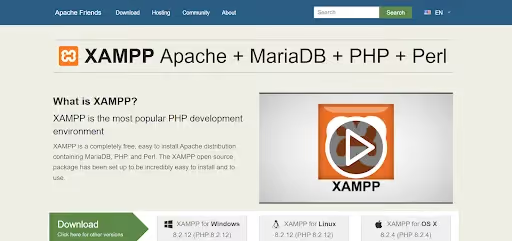
XAMPP is a popular and easy-to-use tool for setting up a localhost on your personal computer. Follow these installation steps:
- Step 1: Download XAMPP from the official website apachefriends.org.
- Step 2: Install XAMPP, selecting the necessary components such as Apache, MySQL, PHP, and phpMyAdmin.
- Step 3: Launch the XAMPP Control Panel and start the Apache and MySQLservices.
- Step 4: Visit http://localhost in your browser to verify.
2. Using WAMP
WAMP is another option for setting up a localhost on Windows. Follow these steps:
- Step 1: Download WAMP from the official website wampserver.com.
- Step 2: Install WAMP and launch the application.
- Step 3: Ensure the WAMP icon turns green (indicating the services are running properly).
- Step 4: Visit http://localhost to verify.
3. Using AppServ
AppServ is another similar tool for setting up a localhost. Follow these steps:
- Step 1: Download AppServ from the official website appserv.org.
- Step 2: Install AppServ and select the necessary modules (Apache, MySQL, PHP).
- Step 3: Complete the installation and start the services.
- Step 4: Access http://localhost in your browser to verify.

Testing and verifying the localhost installation:
1. Create a PHP test file
After installing the localhost, you can create a simple PHP file to check your system's PHP information:
Create an info.php file in the htdocs directory with the following content:
<?php
phpinfo();
?>
Visit http://localhost/info.php to view detailed information about your PHP version and system configuration.
2. Troubleshooting common errors
- Port in use: If port 80 is already being used by another application, you can change the port in the Apache configuration file.
- Directory access permissions: Ensure you have access permissions for your web project folders and configuration files to avoid errors during testing.
Configuring MySQL and Apache for Localhost on Windows
1. Configuring Apache for Localhost (XAMPP/WAMP/AppServ)
- Apache configuration file:
- The main Apache configuration file on Windows is typically located in the httpd.conf.
- XAMPP: The configuration file path is typically C:\xampp\apache\conf\httpd.conf.
- WAMP: The file path is C:\wamp64\bin\apache\apache[version]\conf\httpd.conf.
- AppServ: The file path is C:\AppServ\Apache2.2\conf\httpd.conf.
- The main Apache configuration file on Windows is typically located in the httpd.conf.
- Basic Apache configuration steps:
- Changing the default port:
- If port 80 is occupied, you can change the Apache port.
- Find the line Listen 80 and change it to a different port, for example: Listen 8080.
- Save the changes and restart Apache.
- If port 80 is occupied, you can change the Apache port.
- Changing the Document Root:
- To change the directory containing your web files:
- Find the line DocumentRoot "C:/xampp/htdocs" and change it to your desired path.
- You also need to update the <Directory "C:/xampp/htdocs"> line to match the new path.
- To change the directory containing your web files:
- Enabling or disabling Apache modules:
- To enable or disable modules such as rewrite:
- Find the line #LoadModule rewrite_module modules/mod_rewrite.so and remove the # to enable it.
- To enable or disable modules such as rewrite:
- Changing the default port:
2. Configuring MySQL for Localhost (XAMPP/WAMP/AppServ)

- MySQL configuration file:
- The MySQL configuration file is usually my.ini or my.cnf.
- XAMPP: This file is located at C:\xampp\mysql\bin\my.ini.
- WAMP: The file path is C:\wamp64\bin\mysql\mysql[version]\my.ini.
- AppServ: The file can be found at C:\AppServ\MySQL\my.ini.
- The MySQL configuration file is usually my.ini or my.cnf.
- Basic MySQL configuration steps:
- Changing the MySQL port:
- If port 3306 is occupied, you can change the port:
- Find the line port=3306 and change it to a different port, for example: port=3307.
- Save the file and restart MySQL.
- If port 3306 is occupied, you can change the port:
- Configuring MySQL memory usage:
- To optimize performance, you can adjust memory settings:
- Find and edit parameters such as key_buffer_size, max_allowed_packet, and table_cache according to your needs.
- To optimize performance, you can adjust memory settings:
- Setting a password for the root account:
- Access phpMyAdmin (http://localhost/phpmyadmin).
- Go to the User Accounts tab and change the password for the root account to secure your database.
- Changing the MySQL port:
3. Restart Apache and MySQL after configuration
- After editing the configuration, you need to restart Apache and MySQL:
- XAMPP: Use the XAMPP Control Panel, click Stop, and then Start Apache and MySQL again.
- WAMP/AppServ: Right-click the icon in the Taskbar and select Restart All Services.
Comparing Localhost with other hosting services
Localhost vs Shared Hosting
Performance: Localhost runs directly on your personal computer, so processing speed and performance depend entirely on your computer's hardware. Meanwhile, Shared Hosting is a service where multiple users share server resources, meaning performance can be unstable during traffic spikes or when other websites on the same server consume excessive resources.
Security: Localhost is not connected to the internet, so you don't have to worry about external attacks or security issues while testing. Conversely, Shared Hosting is an open environment that is vulnerable to attacks without proper security measures. You will have to rely on the service provider's security protocols to protect your website.
Development environment: Localhost provides a completely local development environment, giving you full control over every aspect of your server and software. Shared Hosting, by contrast, is limited in its ability to customize server configurations and software installations, which can make testing advanced features difficult.
Pros and cons of using Localhost versus live hosting
Advantages of Localhost:
- Free and easy to set up on your personal computer.
- High security since it is not connected to the internet.
- Independent of network speed; you can work even without an internet connection.
- Ideal for testing new features without affecting your live website.
Disadvantages of Localhost:
- Inaccessible from the outside; it can only be used on your local machine.
- Dependent on the performance of your personal computer.
- Difficult to accurately simulate the actual environment of live internet hosting.
Advantages of Shared Hosting:
- Accessible from anywhere via the internet.
- Easily scalable as your website grows.
- Managed by the service provider, so you don't need to worry about server maintenance.
Disadvantages of Shared Hosting:
- Performance can be unstable due to shared resources with other users.
- Security is not as high as using localhost.
- Difficult to customize server configurations to meet specific requirements.
When should you use Localhost?
Web application development and testing: Localhost is the ideal solution for developing and testing new features or debugging without worrying about network connectivity issues or affecting your live website.
Learning and improving programming skills: For those just starting to learn web development, using localhost is a great way to get familiar with the development and deployment process at no cost.
Pre-deployment testing: You can test all the features of your website or application before deploying it to a live environment, ensuring everything runs smoothly.
Conclusion
Localhost is an indispensable tool in the web application development and testing process. It provides a safe, flexible, and free environment for developers to experiment and build projects before deploying them to a live environment. If you are a beginner, localhost will help you improve your programming skills and gain a better understanding of how web servers work.
Start using and setting up localhost today to take full advantage of the benefits it offers. If you have any questions or experiences to share, don't hesitate to reach out so we can learn from each other.