

Have you ever wondered why you keep seeing ads for a product on Facebook after visiting its website? The secret lies in Facebook Pixel – a powerful tool that helps businesses track user behavior, optimize ads, and increase conversion rates.
If you aren't leveraging Facebook Pixel yet, you might be wasting your advertising budget! So, how does Facebook Pixel work? How can you set it up for maximum effectiveness? Let's join Markdao to find out in this article!
What is Facebook Pixel?
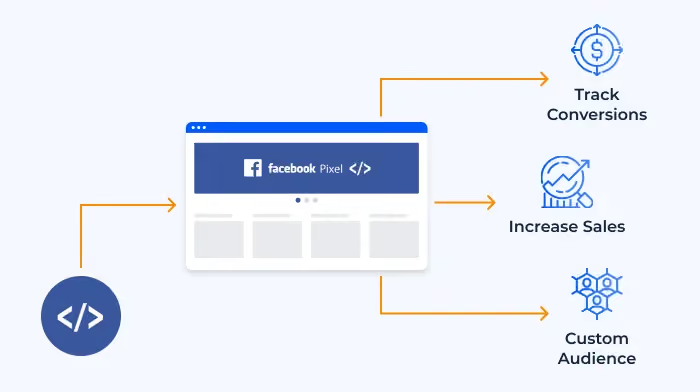
Facebook Pixel is a snippet of code provided by Facebook that is embedded into a website to collect data on visitor behavior. This tool helps businesses track interactions on their site, thereby optimizing ads and improving the performance of marketing campaigns.
Simply put, Facebook Pixel acts like a "memory tool" for your website. When someone visits your site, the Pixel tracks the actions they take, such as viewing products, adding items to their cart, or completing a purchase. This information is sent back to Facebook, helping you better understand your customers and run ads targeted at the right audience.
How Facebook Pixel works
Facebook Pixel works by placing a tracking code on your website. When someone visits your site and takes an action, the Pixel records it and sends that data to Facebook. These actions can include:
- Viewing a specific page on the website
- Clicking a sign-up button or filling out a form
- Adding products to the cart without checking out
- Completing an order
Based on the collected data, Facebook can help you display ads to people who have previously visited your website or find customers with similar behaviors to expand your potential customer base.
Benefits of Facebook Pixel
Using Facebook Pixel offers many benefits to businesses, especially in optimizing advertising and increasing conversion efficiency.
- Tracking customer behavior: The Facebook Pixel helps you track which products customers view and what actions they take on your website, allowing you to tailor your approach more effectively.
- Targeted advertising: Instead of running broad and costly ads, you can reach people who have already shown interest in your products, increasing the likelihood of a purchase.
- Optimize advertising costs: By knowing exactly who your potential customers are, you can allocate your budget wisely, reducing costs while still achieving high performance.
- Measure campaign performance: The Pixel provides detailed data on clicks, purchases, and other key metrics, helping you evaluate ad effectiveness and adjust your strategy in real time.
In short, the Facebook Pixel is a powerful tool that helps businesses not only run more effective ads but also gain a deeper understanding of customer behavior. Installing the Pixel from the start will help you optimize your marketing strategy and significantly increase revenue.
How to install the Facebook Pixel
Installing the Facebook Pixel is quite simple, but to ensure it works effectively, you need to follow the steps correctly. Below is a detailed guide to help you install and activate the Facebook Pixel on your website.
Preparation before installation
Before you begin, ensure you meet the following requirements:
- Have a Facebook Business Manager account to manage your Pixel.
- Have access to your website admin panel to add the Pixel code.
- If you are using platforms like Shopify, WordPress, or Google Tag Manager, you should know how to integrate with these systems.
Steps to install Facebook Pixel
Step 1: Create a Facebook Pixel
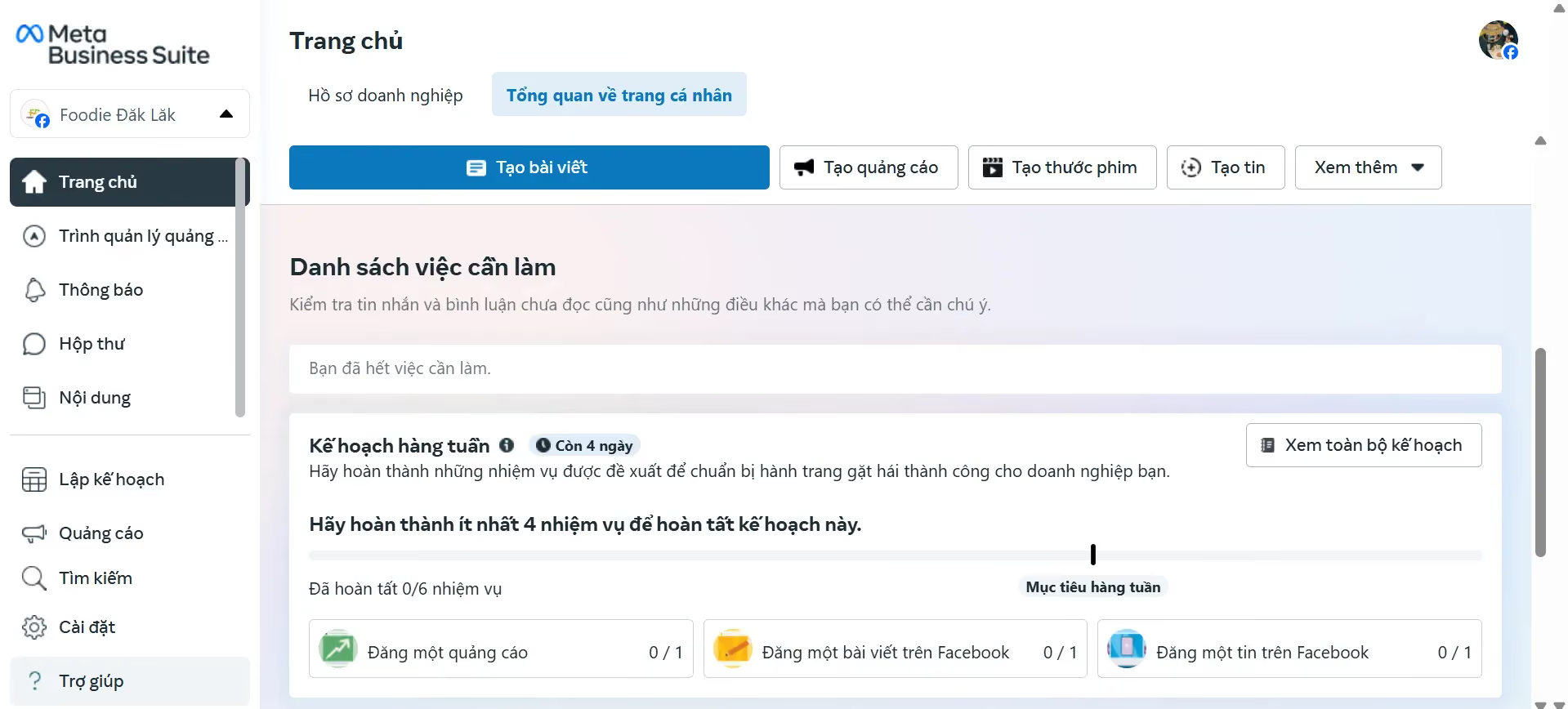
- Go to Events Manager on Facebook via Meta Business Suite.
- Select Connect Data Sources → Web → Facebook Pixel.
- Name your Pixel (using your website name is recommended for easier management).
- Enter your website URL and click Continue.
Step 2: Choose a method to install the Pixel on your website
Once you have created your Pixel, Facebook will provide three ways for you to install the tracking code:
1. Manual installation using the Pixel code
- Select Add Pixel code to website manually.
- Copy the Pixel code provided by Facebook.
- Paste this code into the <head> section on all pages of your website.
- Save and verify that the Pixel is active.
2. Installation via Google Tag Manager (for GTM users)
- Select Use Google Tag Manager.
- Log in to Google Tag Manager, and create a new tag.
- Select Facebook Pixel tag type and enter your Pixel ID.
- Set the trigger to fire on all pages, then click Save and Update.
3. Integrate Pixel with your website platform
If you are using platforms like Shopify, WordPress, or WooCommerce, please follow these integration instructions:
- For Shopify: Go to Settings → Facebook & Instagram → Enter Pixel ID.
- For WordPress: Install the plugin Facebook Pixel and enter your Pixel ID.
Check if the Pixel is active
After installation, you need to verify that the Facebook Pixel is working correctly:
- Use the Facebook Pixel Helper (Chrome extension) to scan your website.
- Check the reports in Events Manager on Facebook.
Important notes for Facebook Pixel installation
- Ensure the Pixel code is placed within the <head> tag to track all pages.
- Avoid placing multiple Pixel codes on one website, as this can cause data errors.
- Double-check your tracking events to ensure the Pixel is collecting the correct information.
Properly installing the Facebook Pixel will help you maximize customer data, thereby optimizing your ads and increasing sales efficiency.
Facebook Pixel standard events
The Facebook Pixel not only helps track website visits but also records specific user actions. These actions are called Standard Events. Setting up these events correctly helps you measure advertising campaign performance and optimize conversions.
What are standard events?
Facebook Pixel standard events are key actions users take on your website that are predefined by Facebook. When an event occurs, the Pixel sends data back to Facebook, allowing you to track and optimize your ads based on actual customer behavior.
For example: When a user clicks the "Buy Now" button, the Pixel will record the "Purchase" event.
List of Facebook Pixel standard events
Below are the 17 standard events supported by the Facebook Pixel:
Why set up standard events?
Using standard events helps businesses:
- Track customer behavior at every step of the conversion funnel.
- Optimize ads by targeting people who have taken specific actions.
- Improve remarketing performance by showing ads tailored to each stage of the customer journey.
- Accurately measure campaign effectiveness to analyze data and improve your strategy.
How to set up standard events on Facebook Pixel
You can set up standard events by 2 main methods:
1. Use the Facebook Event Setup Tool
- Go to Events Manager on Facebook.
- Select your Pixel and click Add Events.
- Enter your website URL and select the buttons or pages you want to track.
- Assign standard events such as "Purchase" or "Add to Cart."
- Save and verify that your Pixel is working correctly.
.avif)
2. Manual installation using Pixel event code
For more detailed setup, you can add event code directly to your website. For example:
Event code for a successful purchase:
<script>
fbq('track', 'Purchase', {value: 100.00, currency: 'USD'});
</script>
Event code for when a user adds a product to their cart:
<script>
fbq('track', 'AddToCart');
</script>
Facebook Pixel standard events help businesses track customer behavior, optimize ads, and boost sales performance. Properly setting up these events is a crucial step in leveraging Facebook Ads to reach the right audience and effectively maximize conversions.
How to use Facebook Pixel to optimize ads
After installing the Facebook Pixel, the next important step is to leverage the data from the Pixel to optimize advertising campaigns. Below are ways to use Facebook Pixel to help you target more accurately, optimize conversions, and improve ad performance.
1. Create Custom Audiences for Remarketing
Facebook Pixel helps you create custom audiences based on customer behavior on your website. This allows you to run effective remarketing ads , targeting people who have already shown interest in your products or services.
How to create Custom Audiences with Facebook Pixel:
- Go to Ads Manager → Audiences.
- Click Create Audience → Custom Audience.
- Select Website as your data source.
- Set up conditions such as:
- People who have visited your website in the last 30 days.
- People who have viewed a product page but have not made a purchase.
- People who have added items to their cart but have not checked out.
- Save your audience and use it in your upcoming advertising campaigns.
Application examples:
- Run ads to remind customers to complete their pending orders.
- Target people who have viewed a specific product but haven't bought it yet.
- Advertise promotions to loyal customers.
2. Create Lookalike Audiences to find new customers
Lookalike Audiences help you expand your customer base by finding people with similar characteristics to your existing customers.
How to create Lookalike Audiences:
- Go to Ads Manager → Audiences.
- Click Create Audience → Lookalike Audience.
- Select your source audience (e.g., customers who have made a purchase in the last 90 days).
- Choose the country and the Lookalike percentage (1% - 10%).
- Click Create to use it in your ad campaign.
Application examples:
- Find new potential customers based on groups that have previously made purchases.
- Target people with behaviors similar to customers who have completed a checkout.
3. Track conversions to measure ad performance
The Facebook Pixel helps you track the number of Conversions from ads, such as purchases, sign-ups, or form submissions.
How to set up conversion tracking:
- Set up standard events like Purchase, Lead, and AddToCart.
- In Ads Manager, select Conversion optimization when setting up your campaign.
- Choose the appropriate conversion event to optimize your ads.
- Track results in Facebook Events Manager.
Application example:
- If you notice a low conversion rate, you can adjust your ad content or landing page.
- If your ad gets many clicks but few purchases, you may need to optimize your checkout page.
4. Value Optimization
The Facebook Pixel doesn't just measure conversions; it can also optimize for order value. If you generate higher sales from a specific customer segment, Facebook will automatically adjust your ads to reach similar high-value customers.
How to enable value optimization:
- Set up the Purchase event with specific order values.
- In Ads Manager, select the Conversions objective.
- Choose Value Optimization so Facebook displays your ads to customers more likely to spend more.
Application example:
- If you sell premium products, you can optimize your ads to target customers with a higher spending propensity.
- Facebook will prioritize showing ads to people with a history of higher purchase volume.
5. Testing and optimizing campaigns with A/B Testing
Using Facebook Pixel to test different ad versions helps you identify the most effective strategy.
How to perform A/B testing:
- Run at least two ad versions with different content, images, or CTAs.
- Use Pixel to track which version has a higher conversion rate.
- Turn off underperforming ads and focus your budget on the better version.
Application example:
- Test which ad content attracts customers better.
- Test multiple CTAs to find ways to optimize conversions.
Facebook Pixel is not just a tracking tool but a powerful asset for ad optimization. By knowing how to use Pixel to create custom audiences, lookalike audiences, track conversions, optimize order values, and run A/B tests, you can optimize ad spend and increase campaign effectiveness.
Conclusion
Facebook Pixel is an indispensable tool for Facebook advertisers, helping to track user behavior, measure campaign effectiveness, and optimize ads with precision. From installing the Pixel and setting up standard events to using data for remarketing and conversion optimization, everything contributes to improving ad performance and increasing revenue.
If you want your Facebook ads to be more effective, install Facebook Pixel today and take advantage of its powerful features. When used correctly, Facebook Pixel not only helps you reach the right customers but also optimizes ad costs, delivering superior results for your marketing campaigns.