

Google Search Console (GSC) is a free tool provided by Google that helps website administrators monitor search performance, detect technical errors, and optimize SEO. With GSC, you can check traffic, index pages, improve user experience, and resolve issues affecting your Google rankings. In this article, we will explore what Google Search Console is and discover 8 key features to help you manage your website more effectively.
What is Google Search Console?
Google Search Console (formerly known as Google Webmaster Tools) is a free service provided by Google that helps website administrators monitor and optimize their site's performance in search results. This tool allows you to check how Google crawls, indexes, and displays your website on the search engine.
With Google Search Console, you can view detailed reports on traffic, user search queries, indexing errors, and page experience. This helps website administrators improve rankings and boost SEO effectiveness.
The purpose of Google Search Console for websites
Using Google Search Console provides many important benefits for your website, including:
- Helping your website appear better on Google: Supports fast indexing, helping your site appear in Google search results.
- Monitoring search performance: Provides detailed data on impressions, clicks, CTR (Click-through Rate), and the average position of your website on Google.
- Checking and fixing errors: Detects issues such as crawl errors, pages blocked by robots.txt, or 404 errors.
- Optimize user experience: Helps improve page load speed, mobile responsiveness, and Core Web Vitals.
- Monitor website links: Displays a list of backlinks pointing to your site and internal links to optimize your SEO strategy.
Why should you use Google Search Console?
1. Helps track SEO performance
With Google Search Console, you can track important data such as:
- Which keywords are driving traffic.
- Which pages are performing well in search results.
- The average position of your website on Google.
This information helps you evaluate and optimize your content for better SEO results.
2. Supports Google search optimization
Google uses algorithms to rank websites, and Google Search Console helps you understand how Google perceives your site. This tool helps you:
- Submit a sitemap to ensure content is indexed quickly.
- Check which pages are not yet indexed and request that Google recrawl them.
- Improve technical factors to make your website more Google-friendly.
3. Alerts you to errors and helps troubleshoot issues
One of the biggest benefits of Google Search Console is its ability to detect and alert you to errors that could impact your SEO, including:
- Indexing errors: Pages are not indexed by Google due to technical issues.
- User experience issues: The website has slow loading speeds or display issues on mobile devices.
- Security alerts: Google will notify you if your website has been compromised or contains malware.
With Google Search Console, you can promptly detect and resolve these issues to ensure your website performs well and maintains its Google rankings.
Key features of Google Search Console
Google Search Console (GSC) is an essential tool for website administrators, helping to track SEO performance and troubleshoot technical issues. Below are the key features you should leverage to optimize your website on Google.
Performance Report
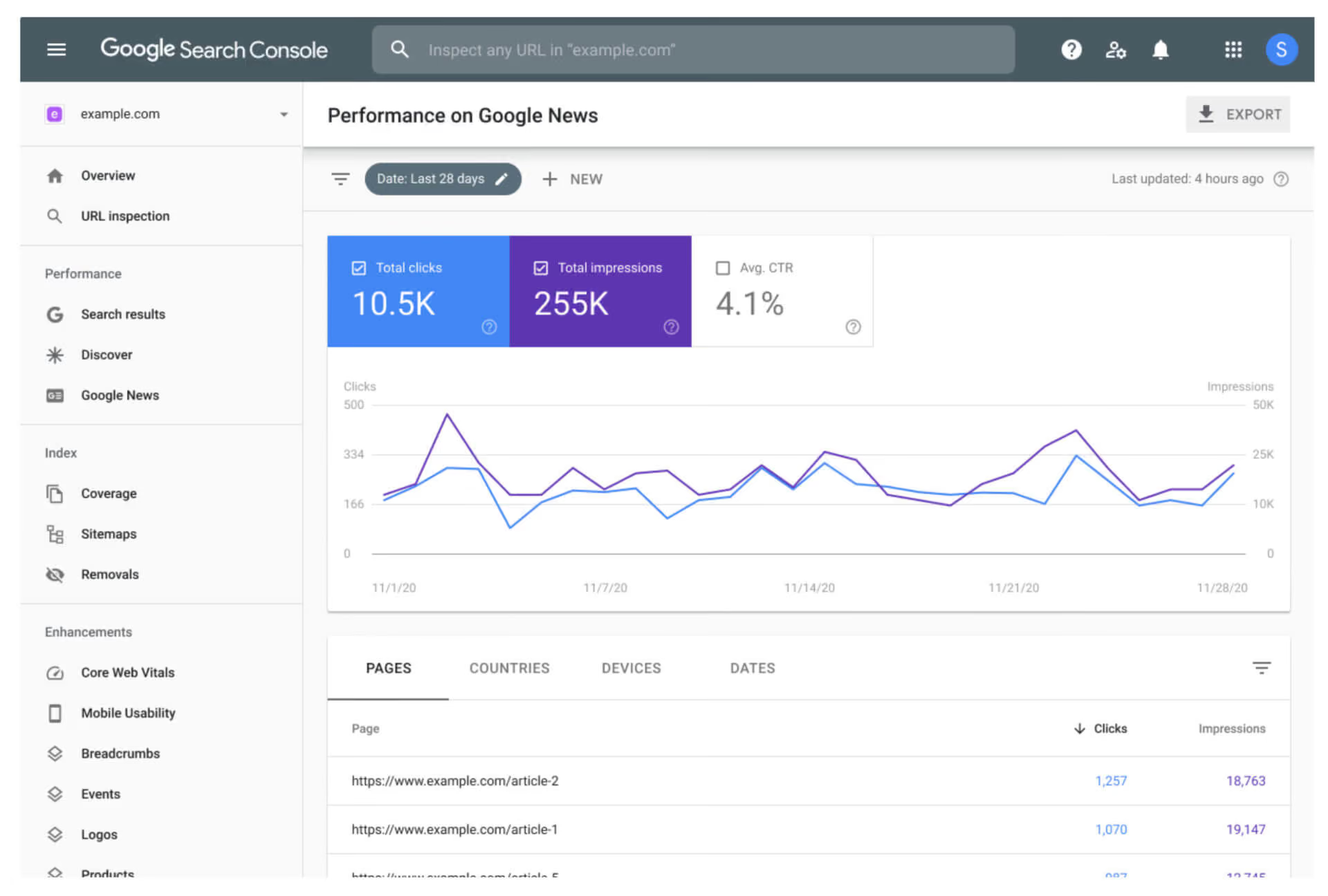
The Performance report is the most important feature in Google Search Console, helping you track organic search traffic and evaluate the effectiveness of your SEO strategy.
1. Key metrics in the performance report
The data in the performance report includes 4 main metrics:
- Impressions: The total number of times your website appeared in Google search results.
- Clicks: The number of times users click on your website after searching.
- Average CTR (Click-through Rate): The ratio of clicks to impressions. A low CTR may indicate that your title or meta description is not compelling enough.
- Average Position: The average ranking of your website on Google.
2. How to use data to optimize SEO
- Increase CTR by optimizing titles and descriptions: If your CTR is low, adjust your Title Tag and Meta Description to make them more engaging.
- Analyze pages with high impressions but low clicks: Identify which keywords generate many impressions but few clicks to improve your content.
- Monitor trends: If the average position of a keyword drops, you need to re-optimize your content or strengthen your backlinks.
Indexing & Coverage Report
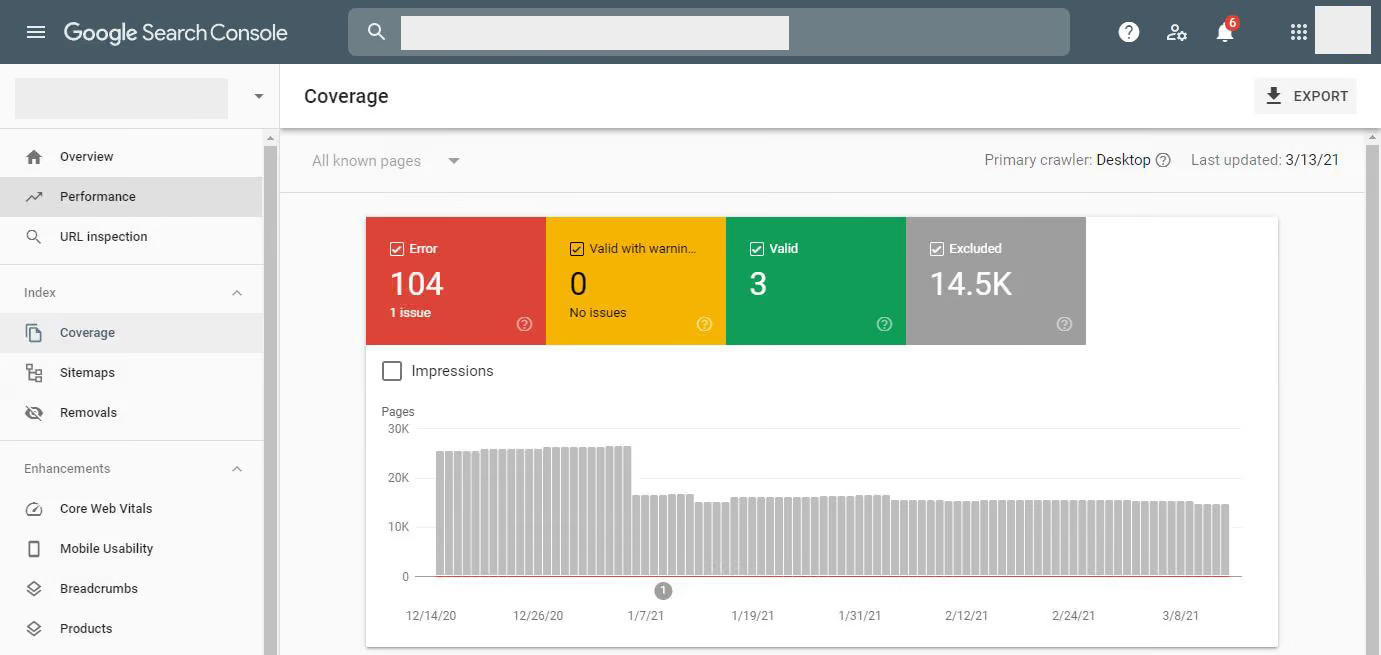
The Indexing & Coverage report helps you check the indexing status of your website on Google, allowing you to fix errors that affect your site's visibility on search engines.
1. Common indexing errors
- Discovered - currently not indexed: Google has found the page but has not indexed it yet, usually because the content is not high-quality enough or the page has not been prioritized for crawling.
- Crawled - currently not indexed: Google has crawled the page but decided not to index it, likely due to duplicate content or low quality.
- Excluded by ‘noindex’ tag: The page is blocked from indexing due to a noindex tag.
2. How to request faster indexing from Google
- Use the URL Inspection Tool to submit indexing requests for individual important pages.
- Ensure the page is not blocked by robots.txt.
- Submit an XML Sitemap to GSC so Google can easily crawl your entire website.
Core Web Vitals and Page Experience
Google increasingly prioritizes user experience (UX), with Core Web Vitals playing a crucial role in SEO rankings.
1. Core Web Vitals consists of 3 main metrics:
- LCP (Largest Contentful Paint): Measures the time it takes to load the largest content element on the page. For the best LCP, it should be under 2.5 seconds.
- FID (First Input Delay): Measures the time it takes for the page to respond to the first user interaction. An FID under 100ms is optimal.
- CLS (Cumulative Layout Shift): Measures the extent of layout shifts while the page is loading. A CLS under 0.1 is ideal.
2. How to optimize Page Experience
- Improve page load speed: Reduce image sizes, use a CDN, and optimize JavaScript and CSS code.
- Reduce response latency: Use caching, optimize your server, and implement Lazy Loading.
- Ensure the page layout remains stable: Test the layout across multiple devices to ensure stability.
Check for mobile usability
Google prioritizes mobile-friendly websites in its search rankings.
1. Common errors in the Mobile Usability Report
- Content wider than screen: Text or images that do not scale to fit mobile screen sizes.
- Font size too small: Makes it difficult for users to read on mobile devices.
- Clickable elements too close together: Leads to a poor user experience when navigating on a phone.
2. How to optimize your website for mobile devices
- Use Responsive Design so your website displays correctly on all screen sizes.
- Test your page using Google's Mobile-Friendly Test tool.
- Reduce page load times by optimizing image assets and source code.
Sitemap and Robots.txt
A sitemap helps Google understand your website structure and index content faster.
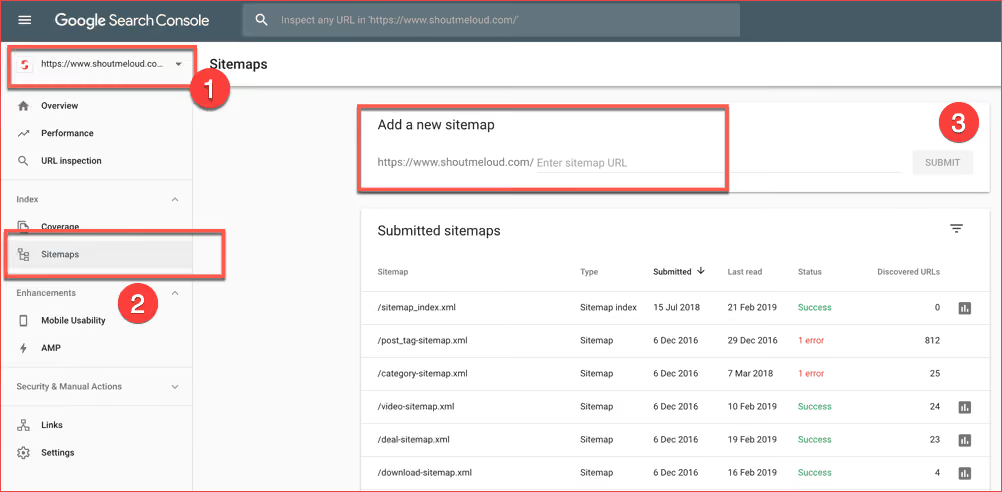
1. How to submit an XML Sitemap to GSC
- Access Google Search Console → Sitemaps.
- Enter the Sitemap URL, for example: https://yourwebsite.com/sitemap.xml.
- Click Submit to send your sitemap to Google.
2. Checking for robots.txt errors and how to fix them
- Avoid blocking important pages with the Disallow command in your robots.txt file.
- Use the Robots.txt Tester tool to check for syntax errors.
Links Report
This feature helps you check internal links and backlinks pointing to your website.
1. Two important types of links:
- Internal Links: Internal links help Google understand your website structure.
- External Links: Backlinks from other sites pointing to your website.
2. Identifying and handling bad backlinks
- Use the Disavow Links tool to reject spammy backlinks.
- Build a logical internal linking structure to improve website navigation.
Detecting security issues & Google penalties
Google Search Console will alert you if your website violates search guidelines or has been compromised.
1. Important alerts:
- Manual Actions: Penalties resulting from SEO policy violations.
- Security Issues: The website contains malware or has been compromised.
2. How to resolve security issues and penalties
- If you receive a manual action, check the report in GSC and resolve the issues according to Google's guidelines.
- If there is a security alert, scan for viruses and update your website security.
URL Inspection Tool
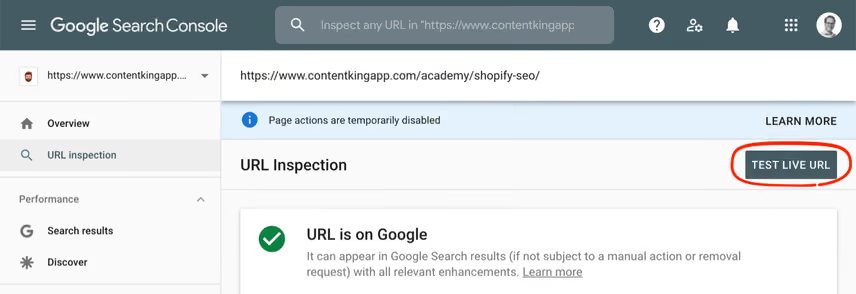
This feature helps you check the indexing status of a specific URL.
- Information you can check:
- Whether the URL has been indexed.
- Googlebot crawl status.
- Errors that may affect visibility on Google.
- How to request Google to recrawl a page (Request Indexing)
- Enter the URL into the URL Inspection Tool in GSC.
- If the page is not yet indexed, click Request Indexing to ask Google to recrawl the data.
- Check back in a few days to see if the page has appeared on Google.
Google Search Console is an essential tool for monitoring and optimizing your website on Google. With features such as performance reports, indexing, Core Web Vitals checks, and security issue detection, you can easily improve your search rankings and user experience.
How to register and set up Google Search Console
Google Search Console (GSC) is a free tool from Google that helps website administrators monitor site performance and optimize SEO. To use Google Search Console features, you need to register and verify ownership of your website. Below is a detailed guide on how to add your website to Google Search Console and verify ownership.
- Guide to adding a website to Google Search Console
Before using Google Search Console, you need to add your website to Google's system by following these steps:
Step 1: Access Google Search Console
- Open your browser and go to Google Search Console.
- Sign in with your Google account.
Step 2: Select the website property type
Google Search Console offers two property types for adding your website:
Domain Property
- Enter the domain name (e.g., example.com) without the http:// or https:// prefix.
- This type tracks all URLs across all protocols (http, https) and all subdomains (www, non-www).
URL Prefix Property
- Enter the exact URL of your website (e.g., https://www.example.com).
- This only tracks data for that specific URL and does not include other variations.
Tips: If you want to manage the entire domain, choose Domain Property. If you only want to track a specific version, select URL Prefix Property.
- Verify website ownership in Google Search Console
After adding your website to Google Search Console, you need to verify ownership using one of the following methods:
- HTML file (Recommended) – Upload the verification file provided by Google to your website's root directory, then click Verify.
- HTML Meta tag – Paste the <meta> tag into the <head> section of your homepage, then verify in GSC.
- Google Analytics – If your website already has Google Analytics installed, you can verify using this account without needing to edit any code.
- Google Tag Manager – If you are using GTM, you can verify ownership via your GTM tracking code.
- DNS (For Domain Property) – Add a TXT record to your domain's DNS, wait for it to update, then click Verify.
Once verified, Google will send a confirmation notification. You can:
- Access the Dashboard of Google Search Console.
- Check for indexing errors and monitor search performance.
- Submit an XML Sitemap to help Google crawl your site faster.
Tip: If your website doesn't have data yet, don't worry! Google needs time to crawl your site, which usually takes a few days to a few weeks.
Conclusion
What is Google Search Console? GSC is an essential tool for optimizing your website and improving your Google rankings. From tracking performance, indexing pages, and checking Core Web Vitals to detecting security issues – GSC provides all the data you need to maintain and grow your website sustainably. If you aren't using Google Search Console yet, set it up today to take full advantage of the benefits it offers!