



Have you ever struggled to track activities on your website, only to find yourself needing to ask the technical team every time you want to change a tracking code? Google Tag Manager (GTM) is the perfect solution for you.
GTM not only helps you manage tags flexibly, but it also allows you to deploy tracking tools without having to edit your website's source code directly. In this article, we will explore what Google Tag Manager is, why it is important, and how to install and use it effectively.
What is Google Tag Manager?
1. Detailed concept
Google Tag Manager (GTM) is a free tool developed by Google that helps you manage tags—snippets of code that track user behavior on your website, such as Google Analytics, Google Ads, and Facebook Pixel.
The unique feature of GTM is that you can add, edit, or remove these tags without needing to change your website's source code directly. GTM acts as an intermediary layer between your website and other analytics and advertising tools.
Practical example: Previously, if you wanted to add a tracking code from Google Analytics to your website, you would have to edit the page's source code directly. This was not only risky but also time-consuming. With GTM, you simply set up the Google Analytics tag within the GTM interface, and everything is handled automatically without ever touching the source code.
2. How GTM works
To better understand how GTM works, think of it as a "coordinator." When you set up a tag in GTM, you specify trigger, are the conditions that cause a tag to fire. GTM monitors user behavior on the website (e.g., scrolling, clicking) and when it detects an action that matches the established conditions, it fires the corresponding tag.
GTM operates on a simple yet highly effective mechanism consisting of three main components: Tags, Triggers, and Variables.
- Tags: These are snippets of code used to track and collect data on your website. For example, you can add a Google Analytics tag to track traffic or a Google Ads tag to track advertising performance.
- Triggers: Triggers are conditions or events on your website that cause tags to fire. For example, you can set up a trigger to track when a user clicks a "Buy Now" button or when they scroll to a certain point on the page.
- Variables: Variables make GTM more flexible in defining specific elements to track. A variable can be a URL, an event value, or any other element you want to use to refine how tags are triggered.
How it works
- When you add the GTM code to your website, GTM acts as an intermediary between your website and tracking tools (Google Analytics, Facebook Pixel, etc.).
- GTM collects information from Triggers based on user behavior (e.g., clicks, scrolling, form submissions).
- When Triggers are activated, the Tags will be executed to send data to analytics or marketing tools.
- Variables are used to adjust triggers and tags for more accurate tracking.
For example, when a user clicks the “Buy Now” button, Trigger will fire the Google Analytics tag, sending data about this action to Google Analytics so you can analyze and optimize your campaigns.
3. The importance of GTM in SEO and for users
Google Tag Manager plays a crucial role in helping marketers manage data and optimize marketing strategies. Beyond saving time and reducing reliance on technical teams, GTM makes it easy to track key SEO and advertising metrics, thereby optimizing campaign performance.

Optimizing advertising campaigns: By accurately tracking user behavior, you can adjust advertising campaigns based on real-world data.
More detailed event tracking: With GTM, you can track every user action on your website, from clicks and scrolling to form completions, helping you gain a deeper understanding of customer behavior.
4. What is Google Tag Manager used for?
Google Tag Manager (GTM) is a powerful tag management tool that allows digital marketers to easily deploy and track tags without needing to modify website source code. So, how can GTM be applied to optimize marketing activities?

Common applications of Google Tag Manager:
Managing tracking tags: With GTM, deploying tracking codes like Google Analytics, Google Ads, or Facebook Pixel is easier than ever. You only need to follow a few simple steps without touching the website's source code, saving you time and effort.
Event tracking: GTM allows you to create and track events on your website, such as clicks, page scrolls, or form submissions, without needing to change any code. This helps you capture user behavior in a more detailed and accurate way.
Increase data collection accuracy: GTM ensures that the process of tracking and collecting user data is smooth and accurate. This not only helps optimize advertising campaigns but also provides valuable insights for analyzing customer behavior.
Google Tag Manager not only helps marketers manage data effectively but also solves many other critical issues. With GTM, you can control your data without relying on the technical team, thereby accelerating the deployment of analytics and tracking campaigns.
How to install Google Tag Manager
Step 1: Create an account and container
First, to get started with Google Tag Manager, you need to create an account. Here is a detailed step-by-step guide:
- Visit the GTM website: Go to Google Tag Manager.
- Log in or create an account: Use your Google account to log in. If you don't have an account, create a new one.
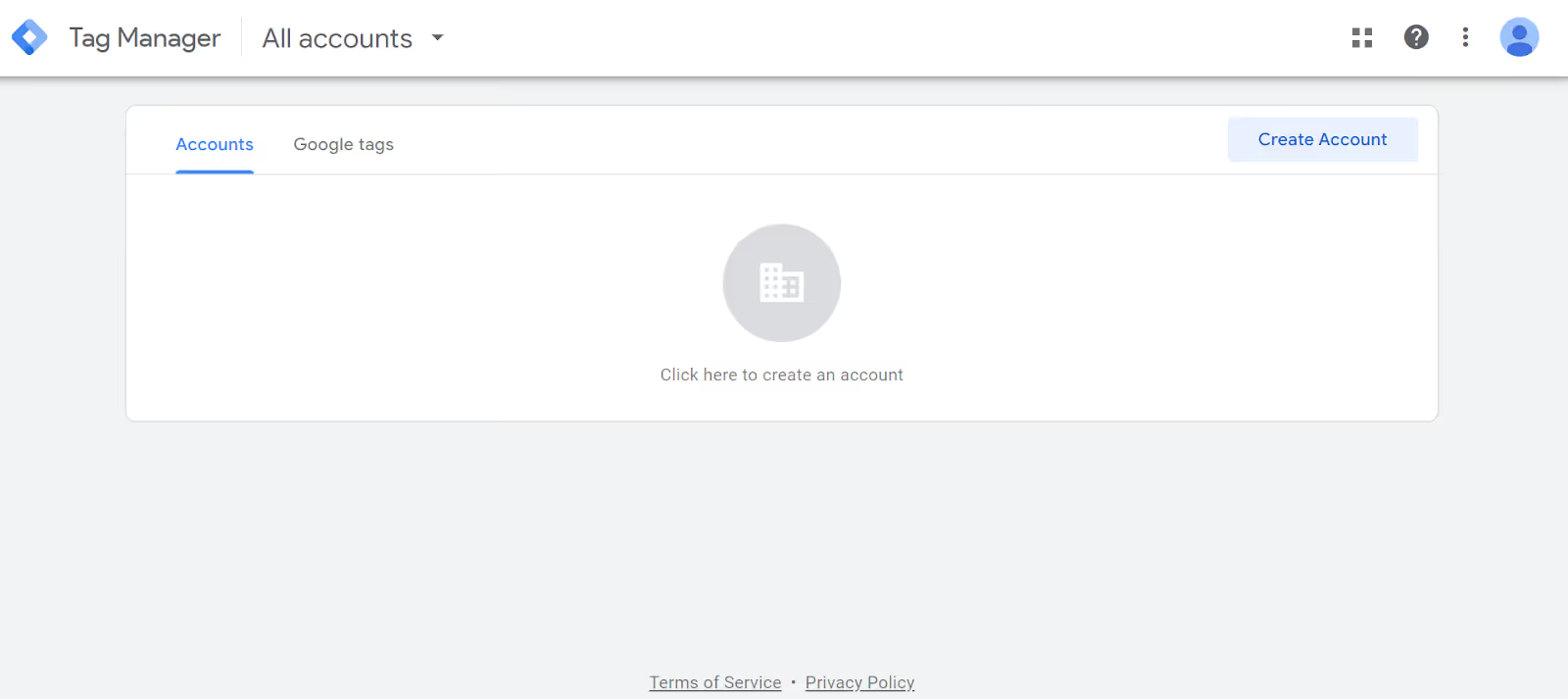
- Create a GTM account: Click the "Create Account" button. You will need to enter your account name (usually your company name), select your country, and enter a container name (the name of the website you will be tracking).
- Select platform: Choose the platform you will be using (Web, iOS, Android, or AMP). For websites, select "Web" to continue.
- Complete container creation: Click "Create" and accept the Google Terms of Service.
Step 2: Install the GTM code on your website
Once you have successfully created your account and container, you will receive your GTM tracking code. This is a crucial step for integrating GTM into your website:
- Get the GTM code: After completing the container creation step, a window will appear displaying the tracking code. This code consists of two parts: one snippet for the <head> section and one for the <body> section.
- Install the code on your website:
- If you are using raw HTML: Copy the first snippet (for the <head>) and paste it before the closing </head> tag of your website. Next, copy the second snippet (for the <body>) and paste it immediately after the opening <body> tag.
- If you are using a CMS like WordPress or Shopify:
- WordPress: You can use a plugin like "Insert Headers and Footers" to add the GTM code to your header and body. After installing the plugin, go to "Settings" -> "Insert Headers and Footers" and paste the code into the "Scripts in Header" and "Scripts in Body" sections.
- Shopify: In Shopify, go to "Online Store" -> "Themes" -> "Actions" -> "Edit Code". Find the theme.liquid file and paste the GTM code into the <head> and <body> sections as instructed above.
>> Read more: What is WordPress?
- Save changes: Don't forget to save the changes you've made to your website.
Step 3: Verify the installation
After installing the GTM code on your website, you need to ensure everything is working correctly before you start using it:
- Use the Preview feature in GTM:
- Log in to your GTM account and click the "Preview" button in the top right corner.
- Open your website in a new tab. A Preview window will appear, showing you which tags are being triggered.
- Check tag activity: As you interact with the page (e.g., clicking buttons, scrolling, etc.), check to see if the tags are firing as expected. You can view the events and tags in the Preview window to confirm that everything is working properly.
How to use Google Tag Manager effectively
1. Manage and set up tags
GTM allows you to manage various types of tracking tags. Here is how to set up Google Analytics, Google Ads, and Facebook Pixel tags:
- Add a Google Analytics tag:
- In GTM, click "Tags" and select "New".
- Select "Tag Configuration" and choose "Google Analytics: Universal Analytics".
- Select the tracking type (e.g., Page View).
- Enter your Google Analytics tracking ID.
- Click "Triggering" and select "All Pages" to track all pages.
- Click "Save".
- Add Google Ads tag:
- Repeat the same process, but this time select "Google Ads Conversion Tracking" and enter the required information, such as the conversion ID.

- Add Facebook Pixel tag:
- Select "Custom HTML" in the tag configuration section and paste your Facebook Pixel code. Then, add the corresponding trigger.
2. Create triggers to fire tags based on user behavior
Triggers are how GTM determines when your tags should fire:
- Create a new trigger:
- Click on "Triggers" and select "New".
- Select the appropriate trigger type, for example, "Click – All Elements" to track clicks.
- Configure the trigger by defining conditions, for example, only firing when the "Buy Now" button is clicked.
- Specific example: You can create a trigger to track a "Scroll to 50%" event. Select "Scroll Depth" and enter the percentage you want to track.
3. Using variables in GTM
Variables help you customize and optimize your data tracking:
- Understanding variables: Variables can store values such as URLs, product IDs, or even user information.
- Creating a new variable: Go to "Variables" and select "New" to create a custom variable. For example, you can create a variable to track product IDs from the URL when a user clicks on a specific product.
Important considerations when using Google Tag Manager
When using Google Tag Manager (GTM), there are a few important points to keep in mind to ensure your tag tracking and management are as effective as possible. Here are two key points to note:
1. Manage tag versions carefully
Adding too many tags to GTM can slow down your website. Therefore, version management is crucial. Every time you create or edit a tag, GTM saves the previous version, making it easy to revert if needed. However, you should also:
- Optimize the number of tags: Only use tags that are truly necessary for tracking. Evaluate and remove tags that are no longer needed to reduce the load on your website.
- Monitor performance: Regularly check page load speeds after adding new tags. If you notice the website slowing down, review the tags you have added.
2. Test and preview before publishing
Before publishing any changes in GTM, testing and previewing are essential. Google Tag Manager provides a Preview & Debug feature that allows you to see which tags are active without having to publish them immediately. Follow these steps:
- Use Preview Mode: Enable Preview Mode to verify that tags are firing correctly as you interact with your website. This helps you detect errors early on.
- Check events: Ensure that all the events you have set up (such as clicks, page scrolls, etc.) are working as expected. If any issues arise, you can adjust them immediately without disrupting the user experience.
Conclusion
Google Tag Manager not only saves you time but also provides significant benefits for data management and optimization. By installing and using GTM effectively, you can easily track user behavior and optimize your marketing campaigns.
By mastering the installation and usage, you will be able to make the most of Google Tag Manager to track and analyze data more effectively, thereby enhancing your marketing campaigns and optimizing the user experience on your website.
We hope that through this article, Markdao has helped you better understand the overview, installation, and usage of GTM. If you haven't started with GTM yet, get started today to take advantage of this powerful tool!