



If you are building a website on WordPress and haven't heard of AMP , you are missing out. Let's explore what AMP is, its incredible benefits, and a detailed guide on how to set up AMP for WordPress right now.
Benefits of using AMP for WordPress
What is AMP? AMP stands for Accelerated Mobile Pages, referring to web pages optimized to load faster on mobile devices. AMP was developed by Google with the primary goal of providing a smoother and better experience for mobile users.
amp for wordpress
Here are the benefits of using AMP for WordPress that you cannot afford to miss:
- Increase page loading speed
This is the biggest advantage that an AMP page receives. Page loading speed is a crucial factor in improving your site's ranking in SERPs, reducing bounce rates, and increasing conversion rates. This is especially true if you are building an e-commerce website, where fast loading speeds are a major plus.
- Improved mobile user experience
Google AMP provides a dedicated mobile interface that is highly user-friendly. This makes it easy for users to navigate and interact with your content, which in turn helps retain visitors and increase traffic to your website.
- Increased visibility in Google search results
You should know that Google prioritizes displaying AMP pages in search results on mobile devices. Therefore, creating an AMP WordPress website is essential for attracting more traffic to your site.
Detailed guide on how to create AMP for WordPress
It is fair to say that Google AMP is the perfect solution for your mobile WordPress site! This article will guide you through the detailed installation and configuration of AMP for WordPress , helping you make the most of this tool's potential.
1. Preparation before installing AMP
Before you install AMP, you need to complete the following two steps:
- Check system requirements
To install Google AMP, your system must meet the WordPress and PHP version requirements, depending on the plugin you choose. For example, to install the AMP plugin by AMP Project Contributors, you need WordPress version 5.3 or higher and PHP version 7.4 or higher.
- Back up your website data
This is a crucial step before making any changes to your website, including installing AMP. This protects you against data loss in case of technical issues. The simplest way is to use a backup plugin from the WordPress repository. Some reliable and high-quality WordPress backup plugins you might consider include Jetpack, VaultPress, UpdraftPlus, and BackWPup. If you are proficient with FTP and phpMyAdmin, you can also perform the backup manually.
2. How to install AMP for WordPress
Installing the Google AMP WordPress plugin is not difficult. Here is a detailed step-by-step guide to help you install AMP for your website.
- Choosing the right AMP plugin
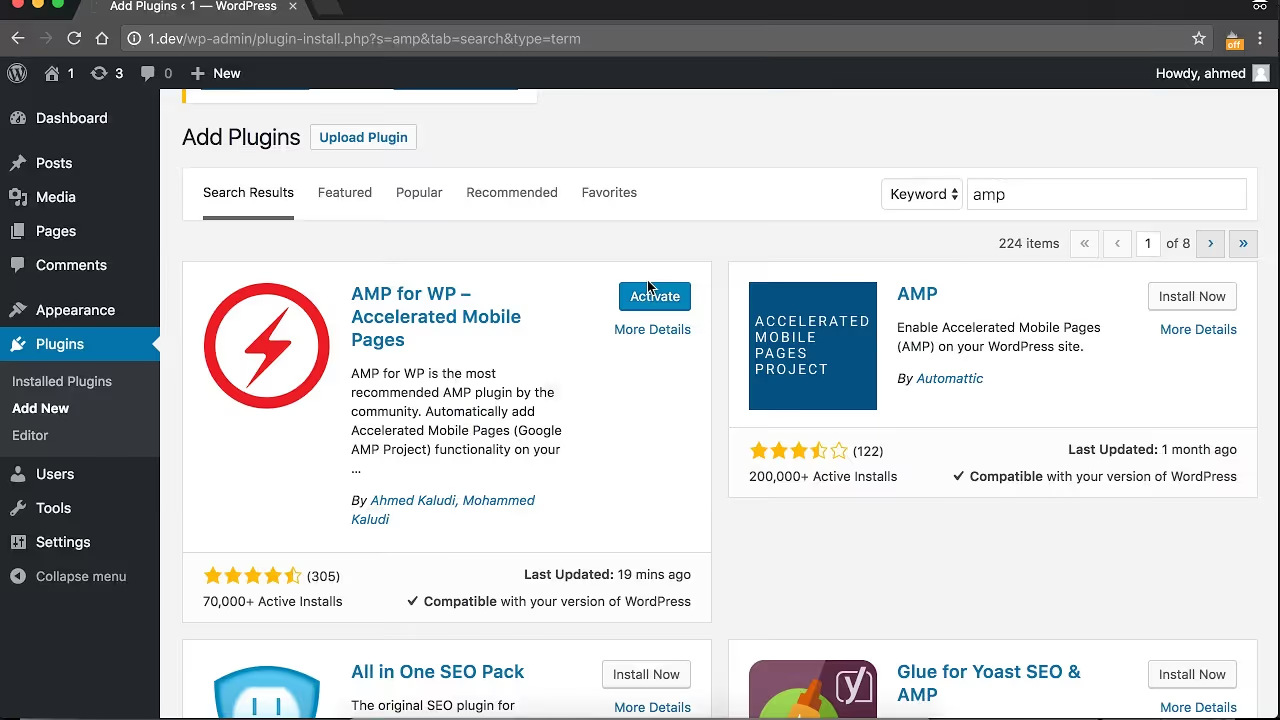
Some Google AMP plugins that are popular and widely trusted include AMP for WP, Official AMP Plugin, All In One SEO Pack, and AMP Supremacy. Each plugin has slightly different features and usage, so you should research them to choose a plugin AMP that suits your needs.
- Installing and activating the AMP plugin
Go to your WordPress dashboard, select Plugins and then select Add new. Next, type the name of the plugin into the search bar. A list of plugins will appear; select the one you need. Click Install now to proceed with the installation. Finally, click Activate to activate the AMP plugin.
- Basic configuration for the AMP plugin
Once successfully activated, you will proceed to perform some basic settings for WordPress AMP website as follows:
- Website type (blog, E-commerce, etc.)
- Where you want to set up Google AMP (homepage, posts, pages, archives)
- Configure design settings
- Set up Analytics tracking
- Set up privacy settings
3. Customizing AMP on WordPress
In this section, we will take a closer look at AMP website design. Specifically:
- Customizing the AMP interface
Once installation is complete, go to the Appearancetab, then select AMP. Here, you will find various tabs that allow you to customize the AMP interface for WordPress according to your preferences, such as logo, themes, text, AMP link, background colors, menu…
- Add features and utilities to your AMP page
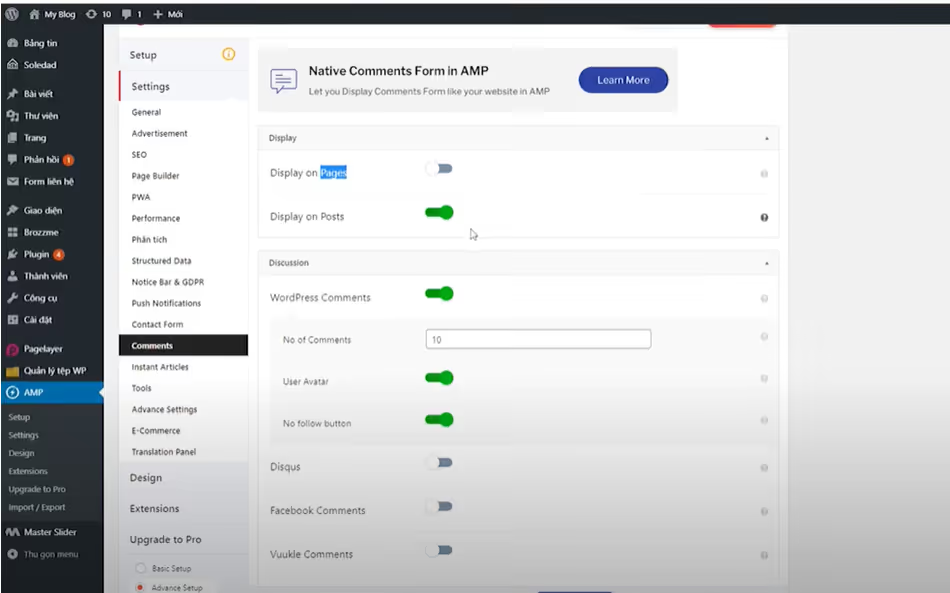
You can easily make your page AMP more useful by enabling built-in features or integrating additional plugins. Go to tabs such as Comments , Contact Form to configure the necessary features. Additionally, you can install other widgets like Sidebar, Header, Footer, Call button, WP Go Maps, and more to make your website even better.
4. Test and optimize your AMP page
The next step after completing the settings is to test and optimize your AMP page. This helps ensure your AMP smooth and efficient operation.
- Check compatibility
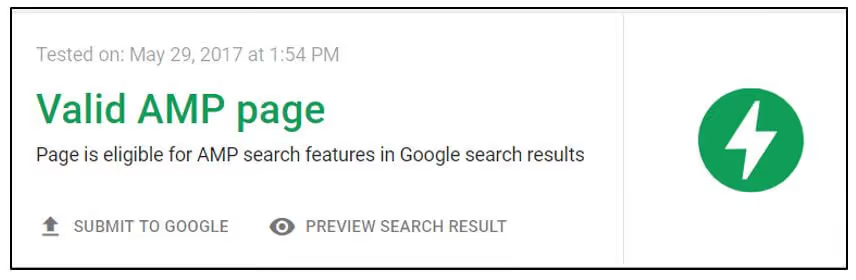
To check, please visit the following link: https://search.google.com/test/amp. Paste the URL of the website you want to test and click Test AMP. If your WordPress AMP website is valid, you will receive a Valid AMP notification and a green checkmark.
- Optimize page load speed
And one extremely important step you cannot overlook is optimizing your AMP page load speed. Some methods you can apply include optimizing images, minifying JavaScript and CSS files, reducing HTTP requests, and using a Lazy Loading plugin…
5. Monitor and evaluate AMP performance
You need to monitor and evaluate the performance of Google AMP to see if your website is performing well and meeting your expectations. Here are the ways to do that:
- Using Google Analytics for AMP
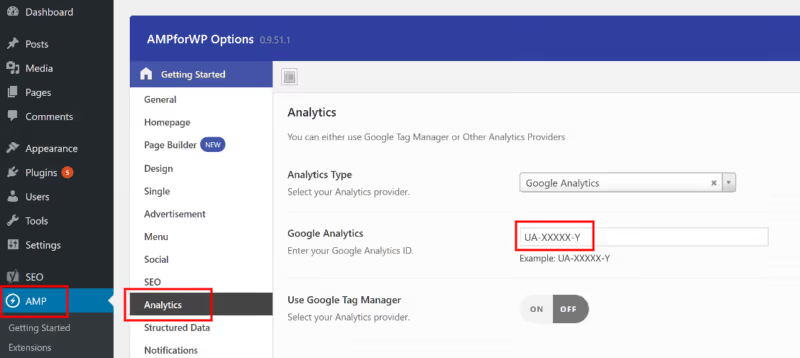
Go to the Google Analytics tool page and navigate to the Property Settings > Admin > Tracking ID tab to retrieve your tracking code. Return to your website admin dashboard, go to Analytics tracking under Settings and select Google Analytics then enter the tracking code into the Tracking ID
field. Next, go to the AMP tab, select Analytics and toggle the Google Analytics feature on. You are now ready to start tracking traffic to your WordPress AMP website.
- Evaluating AMP performance
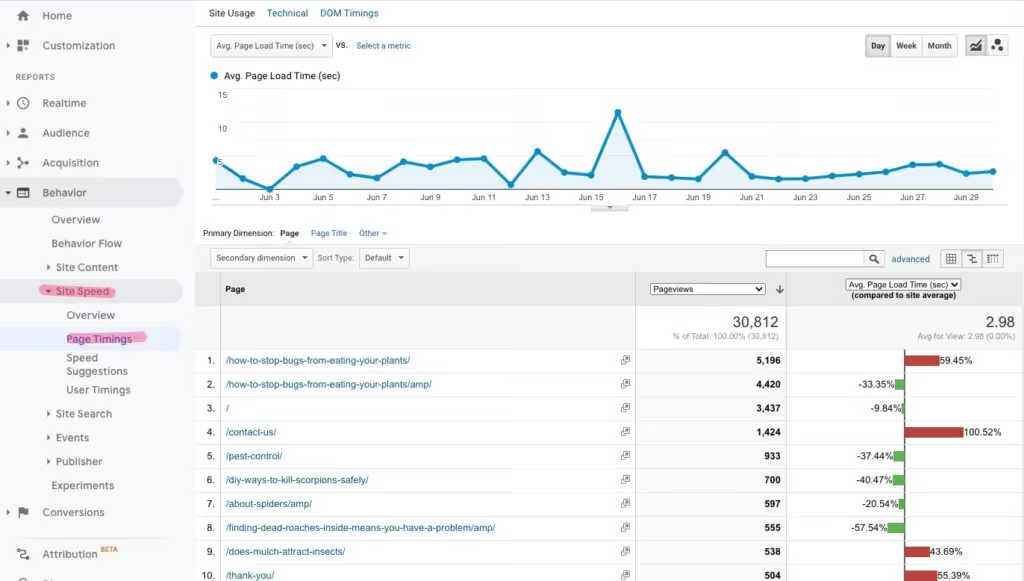
Beyond traffic, you can also use Google Analytics to evaluate other key metrics such as page load speed, bounce rate, and time on page. These are factors that influence conversion rates and Google search rankings.
5 things to keep in mind when creating AMP for WordPress
And to achieve a AMP website design of high quality, you certainly shouldn't overlook these 5 points:
1. Check plugin compatibility
As mentioned above, you need to check the compatibility or validity of your AMP page after completing the setup. Because an invalid AMP page will not be eligible for certain Search features. Consequently, the website will not perform as well as you expect.
2. Check the theme
AMP website design is not a one-and-done task. Therefore, you need to double-check to ensure everything is stable and displays exactly as intended. Some points to focus on during your check include the overall screen layout, background colors, fonts, font sizes, navigation bars, AMP link, and how the website appears across different browsers and devices…
3. Optimize images and content
Image optimization today goes beyond just file size; it must also meet SEO requirements. Images uploaded to your website should be lightweight, in the correct format, sized appropriately for display, and have optimized titles and ALT text.
Beyond images, content is the most important element. You need SEO-friendly content that is tailored to your target audience and provides genuine value.

4. Limit JavaScript and CSS
Our advice is to minimize the use of JavaScript and CSS as much as possible. Excessive code can cause your website to crash or lead to inconsistent rendering across different browsers. Furthermore, bloated code makes it difficult to manage, maintain, and debug, and it significantly impacts page load speeds.
5. Keep everything updated
Last but not least, don't forget to update your Google AMP WordPress plugin and other related plugins regularly. The latest updates will help patch vulnerabilities, ensure security, and provide the most effective and optimized features.
Conclusion
You have just learned how to create AMP for WordPress. It’s not too complicated, right? We hope this useful information helps you build an AMP WordPress website effectively and successfully!