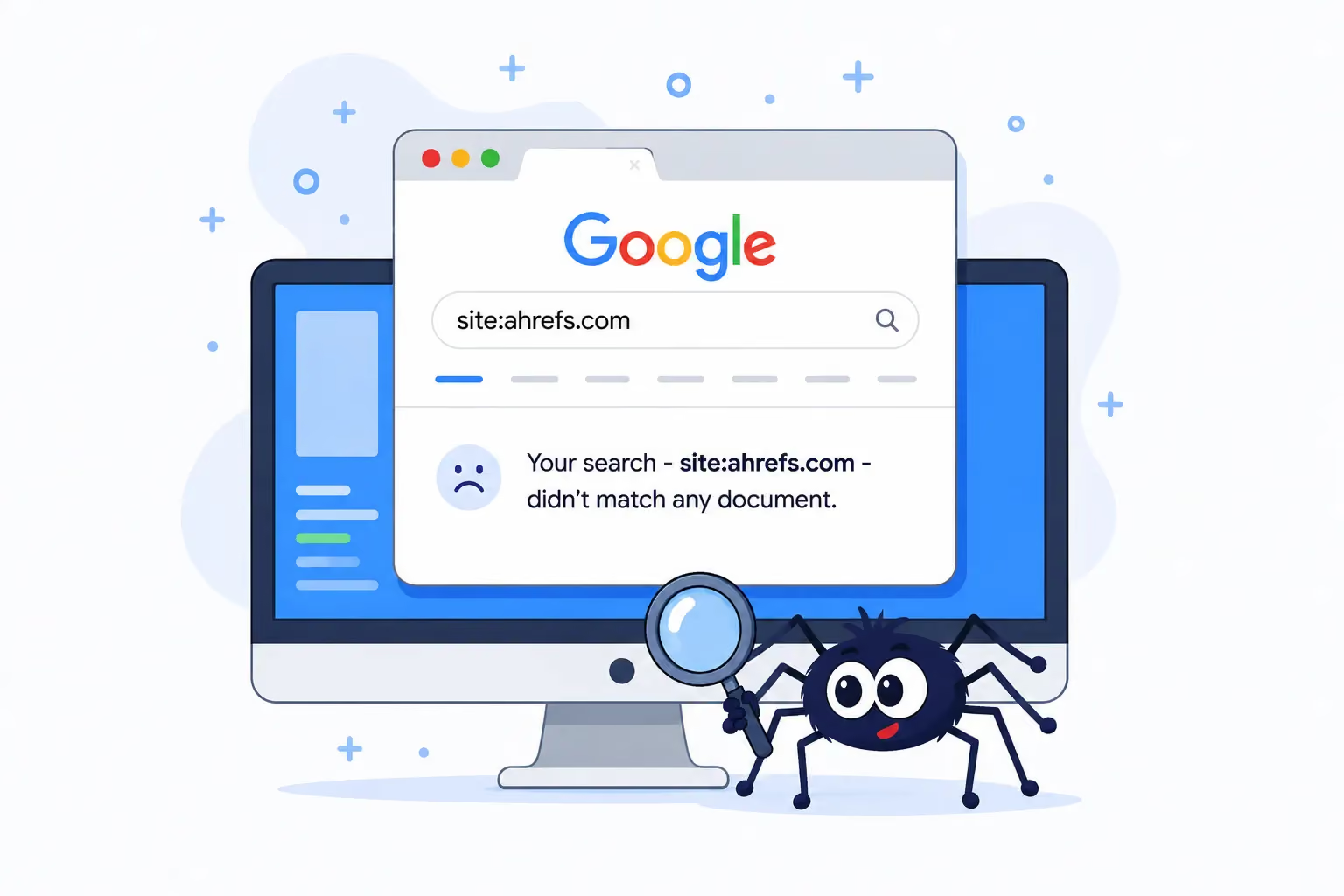


Orphan pages are pages on a website that have no internal links pointing to them, making them difficult for Googlebot and users to discover. These pages can negatively impact SEO, reduce indexability, hinder user experience, and waste Google's crawl budget. In this article, Markdao will share details about orphan page errors, how to detect them, and how to fix them to ensure your website performs at its best.
What are Orphan Pages?
Orphan pages are pages that exist on a website but have no internal links pointing to them. This means users cannot find these pages through standard navigation, and search engines also struggle to crawl and index them.
A well-optimized website requires a tight internal linking structure to ensure that all important pages can be found and indexed. However, when a page is neglected and has no internal links pointing to it, it becomes an orphan page error, which directly affects SEO and user experience.
What causes Orphan Pages?
There are many reasons why a page becomes an orphan page. Here are some common causes:
1. Pages created without links from any other page
When a new page is created but not added to the menu, categories, or linked from related pages, it becomes an orphan page.
This often happens when the development team or web administrator forgets to update the website navigation after creating the page.
2. Errors during website design or structural changes
When a website undergoes a design or structural change, some pages may lose their internal links.
For example: When you remove a category or a new homepage no longer points to certain old articles, those pages become orphan pages.
3. Old pages neglected after updating new content
As a website continuously updates with new content, older posts or pages can be forgotten and left without any internal links pointing to them.
This can diminish the page's SEO value and prevent it from being discovered by Google.
4. Technical CMS issues or data entry errors
Some Content Management Systems (CMS) may automatically generate new pages without adding internal links to them.
Additionally, errors during data entry or website configuration can also lead to this issue.
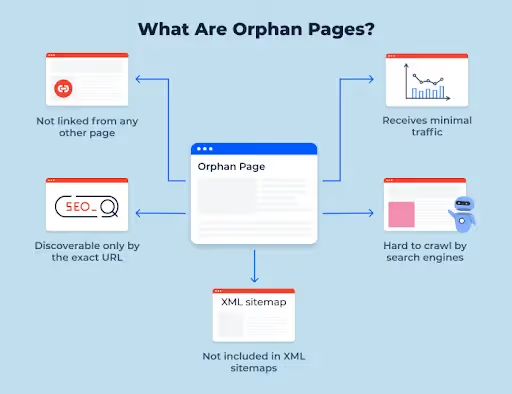
Why are orphan pages harmful to a website?
Orphan pages are not just a structural issue; they directly impact SEO, user experience, and overall website performance. If left unaddressed, these pages can reduce your site's visibility on search engines and waste valuable resources.
Impact on SEO
SEO (Search Engine Optimization) relies on internal linking structures to help search engines crawl and understand website content. When a page becomes an orphan page, it faces the following issues:
Difficulty with indexing because Googlebot cannot find it
Googlebot primarily crawls websites by following internal links between pages.
- If a page has no incoming links, Googlebot will struggle or be completely unable to find it, resulting in the page not being indexed (indexed).
- A page that is not indexed cannot appear in search results.
Failing to receive PageRank from other pages
PageRank is a Google algorithm used to evaluate the value of a page based on the quantity and quality of links pointing to it.
An orphaned page with no incoming links from other pages will not receive any PageRank value, reducing its chances of ranking on the SERP (Search Engine Results Page).
Reduced visibility on the SERP
Pages without internal links are often given lower priority in the eyes of Google.
Therefore, if your website has many Orphan Pages, its overall SEO strength will be diminished, leading to lower search rankings and less organic traffic.

Impact on user experience (UX)
A website with a good user experience helps retain customers longer and increases conversion rates. However, Orphan Pages cause many issues related to navigation and content accessibility.
Users cannot access them easily
When a page has no internal links, users cannot find it through menus, categories, or other navigation links. This makes it difficult to discover important content on the website.
Reduced time on page and increased bounce rate
When users have difficulty finding content, they tend to leave the website quickly, increasing the bounce rate.
If a page does not have links pointing to related content, users may leave without continuing to explore other information on the website. This negatively impacts the dwell time (the time a user stays on a page), a factor that Google may consider when evaluating the usefulness of a website.
Impact on website performance
Website performance is not just about page load speed, but also about how Googlebot crawls data and how the website manages content. Orphan Pages can cause the following issues:
Wasted Google crawl budget
Googlebot has Crawl Budget is limited for every website. If a site has too many Orphan Pages, Google may waste resources on unimportant pages instead of crawling the pages that should be prioritized.
This can cause important pages to be indexed slowly or not crawled at all.
Easily leads to duplicate content or 404 errors
Many Orphan Pages can be the result of duplicates, creating redundant content on the website. This can negatively impact SEO because Google may view it as duplicate content.
If an orphan page is neglected and no longer useful, it can lead to a 404 Not Founderror, which degrades the user experience and affects Google's quality assessment of your site.
The process of finding orphan pages is crucial for optimizing website performance and maintaining stable SEO rankings. If your website has too many Orphan Pages, it can reduce Google's indexing capacity, negatively impact user experience, and waste crawl resources.
In the next section, we will learn how to detect Orphan Page errors and effective methods to fix them to ensure your website is always performing at its best!
How to detect Orphan Page errors on your website
Detecting orphan page errors is a vital step in maintaining an optimal internal linking structure, ensuring that Googlebot can crawl and index all your important pages. Below are common methods to help you find orphan pages effectively.
Use Google Search Console to detect Orphan Pages
Google Search Console (GSC) is a free tool provided by Google that helps website owners monitor SEO performance and detect indexing issues. You can use GSC to find orphan pages by:
1. Check the Indexing > Pages report
- Access Google Search Console.
- Select Indexing > Pages in the left-hand menu.
- In this report, look for pages with the status "Indexed, not submitted in sitemap" or "Discovered – currently not indexed".
- These pages may be Orphan Pages because they have been found by Google but are not in your sitemap or have no internal links pointing to them.
2. Use the “Inspect URL” feature to check specific pages
- Enter a URL into the search bar in GSC and press Enter.
- If the page has been indexed by Google but does not have any links from other pages, it is very likely an orphan page error.
Note: GSC does not directly display a list of Orphan Pages, but by combining data from the indexing report and your sitemap, you can identify pages that may have been overlooked.
Use SEO analysis tools to find orphan pages
In addition to Google Search Console, you can use specialized SEO tools such as Screaming Frog, Ahrefs, SEMrush, Sitebulb,… to detect Orphan Page errors.
1. Compare data between the website crawl and sitemap.xml
- Use Screaming Frog or Sitebulb to crawl the entire website and get a list of all pages with internal links.
- Use Google Search Console or sitemap.xml to view the list of indexed pages.
Compare the two lists:
- If a page is in the sitemap but does not appear in the crawl report, it may have an internal linking error.
- If a page is in the index report but has no internal links, it could be an Orphan Page.
2. Use Ahrefs or SEMrush to find pages without internal backlinks
- Access the Ahrefs Site Explorer tool or SEMrush Site Audit.
- Run a website crawl and filter for pages with zero internal links.
- These are Orphan Pages, as no other pages on your website link to them.

Note: Ahrefs can help you identify both Orphan Pages and pages without backlinks, allowing you to optimize both your internal linking structure and external backlink profile.
Manual checks for orphan page detection
While SEO tools are highly effective, you can also perform manual checks to ensure no orphan pages are overlooked.
1. Review your sitemap and website navigation
- Open the sitemap.xml file for your website by visiting: https://yourwebsite.com/sitemap.xml
- View the list of all pages on your website.
- Compare this against your menus, categories, and related posts. If a page appears in your sitemap but has no incoming links from other pages, it may be an Orphan Page.
2. Check server logs to identify pages without internal links
Server logs record all access requests to your website, including those from Googlebot.
If a page is accessed directly (from Google, ads, email, etc.) but receives no traffic from other pages on the website, it may be an orphan page error.
Server log analysis tools:
- Splunk
- Google Cloud Logging
- Screaming Frog Log File Analyzer
Detecting orphan page errors is a crucial step in optimizing SEO and improving user experience. By using Google Search Console, advanced SEO tools like Ahrefs, SEMrush, and Screaming Frog, as well as manual checks, you can find orphan pages effectively and address them promptly.
How to fix Orphan Pages
After you find orphan pages on your website, the next step is to address them to ensure all important pages have appropriate internal links, which helps improve SEO and user experience. Below are three effective methods to fix orphan page errors.
Add relevant internal links
To fix orphan page error, you need to add internal links from relevant pages so that Googlebot and users can easily find them. Insert links from appropriate articles, categories, or navigation menus. Also, use optimized anchor text to help Google understand the content of the destination page.
Example: If the orphan page is an article about "How to optimize page load speed," you can add a link from an article about "The importance of Core Web Vitals."

Update Sitemap.xml and check Robots.txt
Ensure all important pages are included in your Sitemap.xml so Google can index them faster. Check your Robots.txt to make sure the page is not blocked from crawling. If necessary, you can resubmit your sitemap in Google Search Console to update the index.
Note: If a page has been added to the sitemap but is still not indexed, use Google Search Console to request re-indexing.
Delete or redirect unnecessary pages
If an orphan page no longer provides value, you can 301 redirect it to a relevant page or remove it entirely. Use an SEO tool to re-check after processing to ensure there are no remaining orphan page errors and to maintain an optimal website structure.
Example: If you have an outdated page for "SEO Services 2020" that is no longer relevant, you can redirect it to your new "SEO Services 2024" page to prevent it from being abandoned.
Conclusion
Identifying and resolving orphan page errors is a crucial part of any SEO optimization and website management strategy. By using Google Search Console, specialized SEO tools, and adjusting your internal linking, you can find orphan pages and fix them effectively. Perform regular checks to ensure your website maintains a tight link structure, which helps Google index your content faster and improves the user experience.