

There are many software programs that allow users to choose from various algorithms and techniques to reduce image file size on a computer, or you can access free websites to do so without downloading anything. To begin reducing image file size, you first need to understand how images are structured. This ensures that whatever compression method you choose, the results will align with your goals. If you are looking for information about web image dimensions, you can revisit this Markdao article to learn more. If you have already found software but want to understand in depth why different programs have different image compression capabilities, then this is the article for you.
Understanding image dimensions and the factors that determine quality
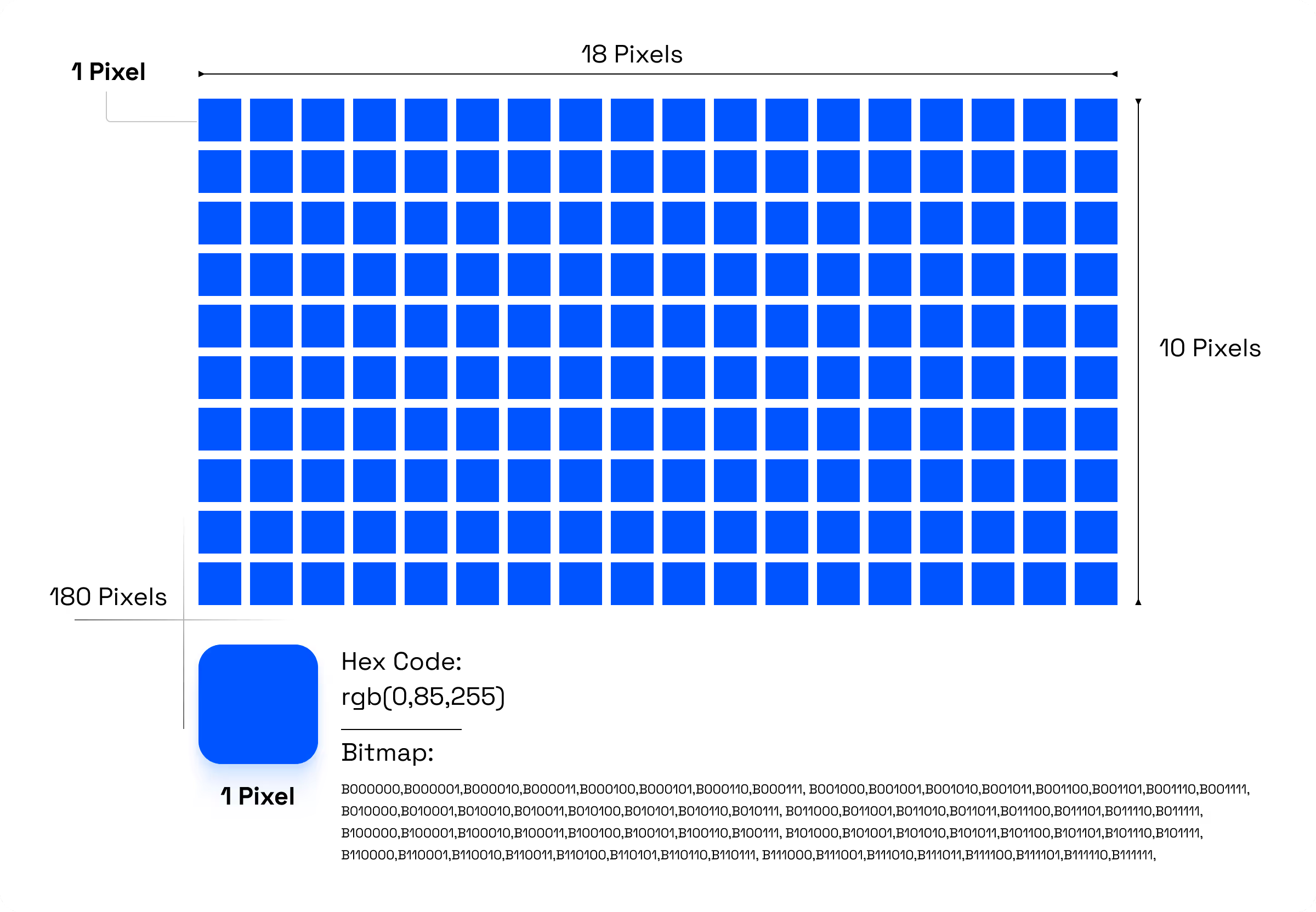
Images are stored on computers as BITMAPs, a digital storage method where each pixel is defined by a specific numerical code. Each pixel can have a different color depth, depending on the number of bits allocated to it.
The width and height of an image are measured in pixels. By multiplying the total number of horizontal pixels by the total number of vertical pixels, you get the total pixel count of the image; therefore, larger dimensions result in a larger file size. However, an image's file size is determined by more than just its pixel data.
Factors that determine image file size
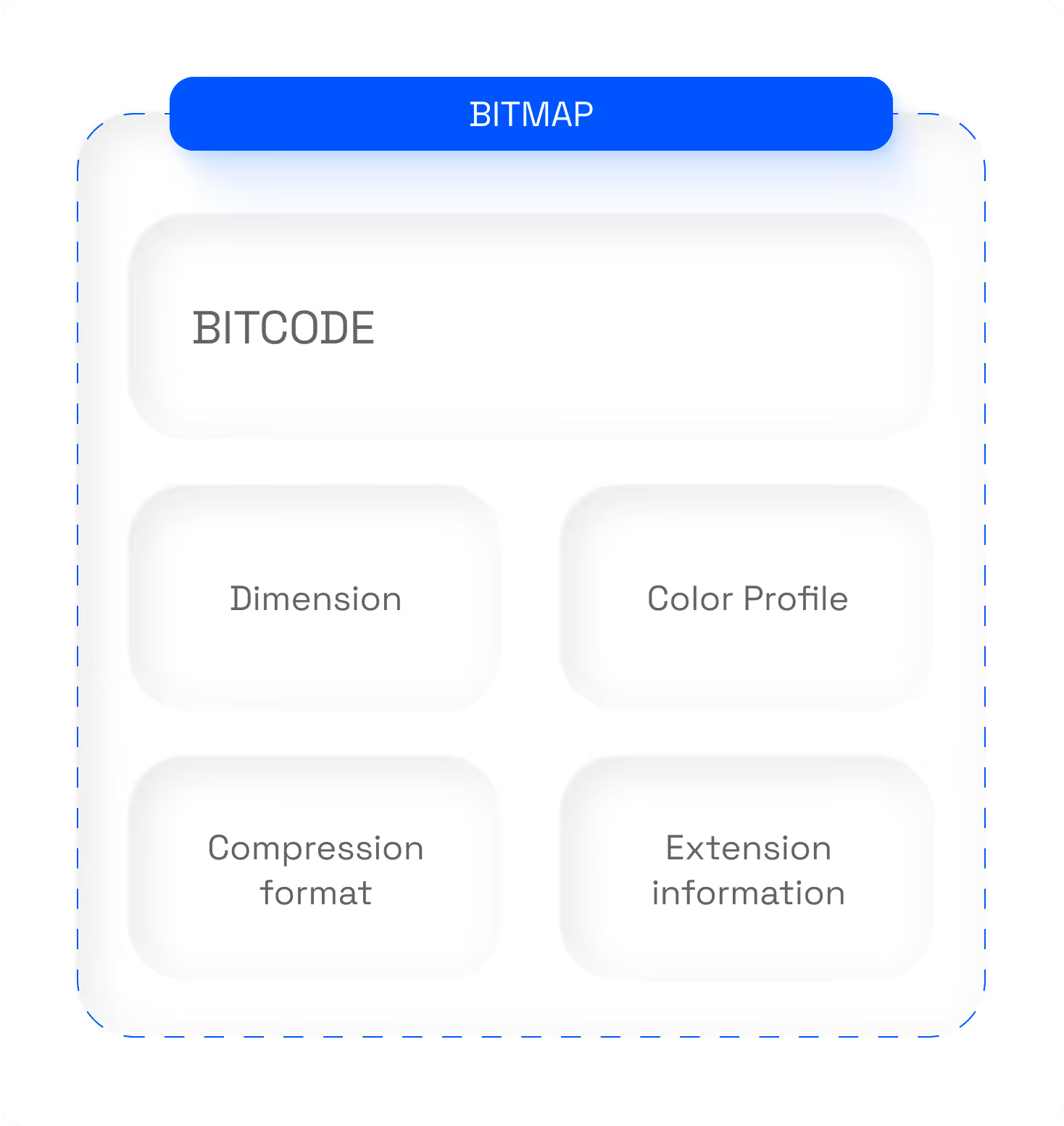
- Image data: Each pixel in an image is represented by a specific color value. This data is organized into a matrix, where each value represents a single pixel in the image.
- Image dimension information: The width and height of the image, and the total number of pixels it contains.
- Color space information: For RGB images, this includes information on how colors are represented, such as the number of bits used for each color channel (red, green, blue), and the bit depth (e.g., 8-bit, 16-bit, 24-bit, or 32-bit per pixel). A higher bit depth results in a larger file size because there are more independent values stored within the image file.
- File format information: This includes headers and other descriptions of the BMP file structure, which help the computer understand how to read and display the image.
- Additional data: This may include other supplementary data such as file extension information, image source details, or metadata like the author, creation date, and other parameters.
Commonly used bitmap image formats:
- JPEG (Joint Photographic Experts Group): This is one of the most widely used formats for reducing image size. JPEG is typically used for images with complex colors, such as photographs taken with digital cameras. This format is ideal for storing images with small file sizes while maintaining relatively high quality.
- PNG (Portable Network Graphics): PNG is an image format that uses little to no compression, reducing file size without compromising image quality. It supports transparency and multiple layers. PNG is commonly used for images that require high quality, such as charts, icons, or images with transparent backgrounds.
- GIF (Graphics Interchange Format): GIF is a highly compressed image format primarily used for animations. It supports looping and transparency, and is often used for small animations or web icons. However, a drawback of GIF is that file sizes can become quite large for longer animations. As alternatives to GIF, Airbnb introduced Lottie files, and Google introduced WebP.
- BMP (Bitmap Image File): BMP is an uncompressed image format that stores the most complete bitmap information. It is typically used for storing high-quality images without the need for compression. However, due to large file sizes, BMP is not as widely used as JPEG or PNG.
- TIFF (Tagged Image File Format): TIFF is an uncompressed or lossless compressed image format, commonly used in applications that require high quality, such as professional printing and graphic design. TIFF supports multiple layers, color depths, and resolutions, making it suitable for professional software like Photoshop and Illustrator.
- WEBP (Web Picture): This is a brand-new format recently created by Google with a more optimized image compression algorithm compared to PNG or JPG. It can reduce file size by up to 50% compared to its older counterparts while still supporting transparency and animation like the veteran GIF.
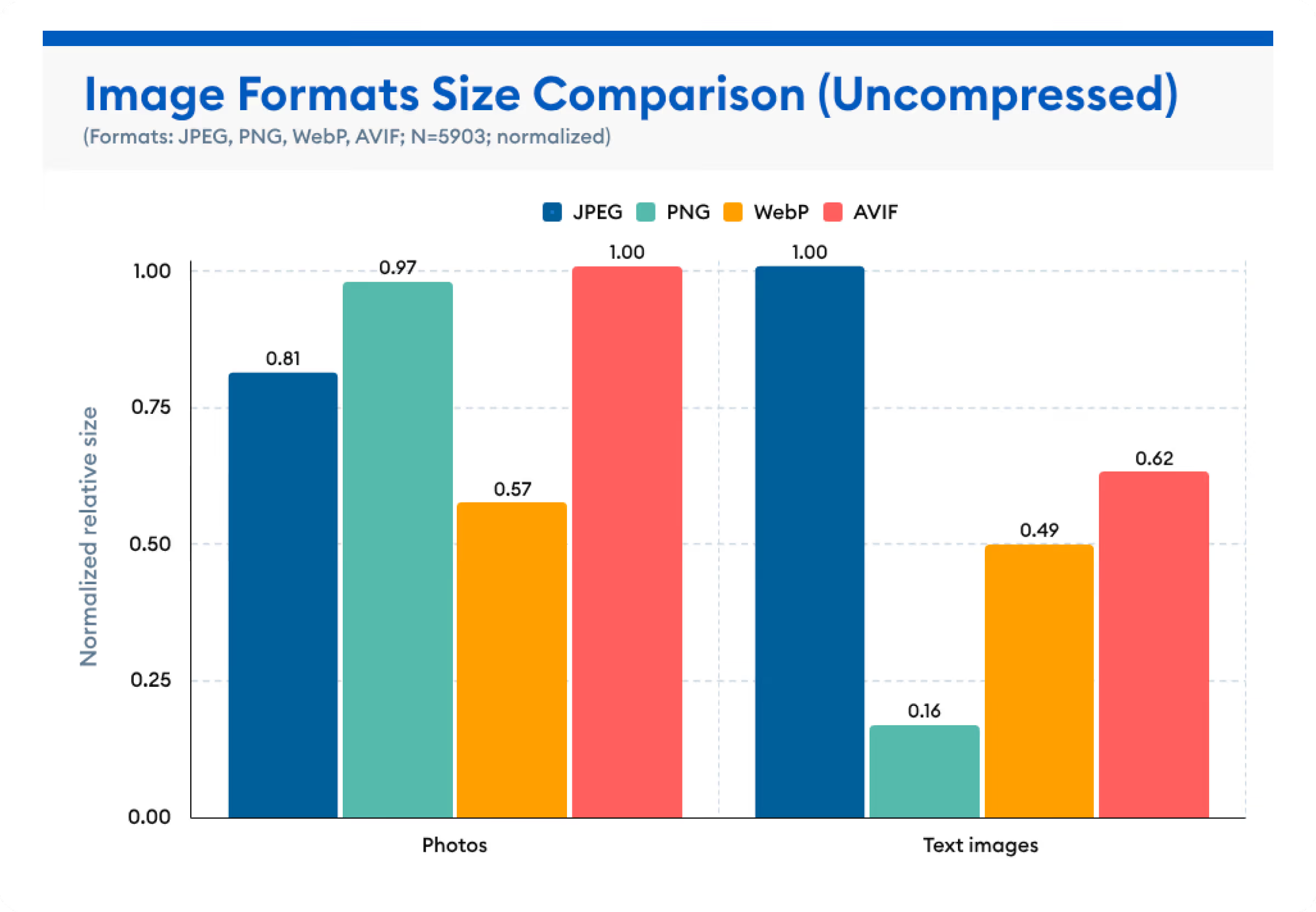
Recently, Google PageSpeed Insights has been consistently prompting users to switch to WebP to achieve higher scores. However, WebP is not yet widely adopted, partly because many operating systems still lack native support for viewing these files without third-party software.
To provide a comprehensive overview of these formats, Markdao will conduct a small experiment using an image with the same dimensions, color profile, and metadata, varying only the format. This will allow you to see the level of compression optimization and help you make the right choice before you start using them.
Different color profiles result in different image sizes
There are many popular color profiles worldwide. In this article, Markdao will focus only on those commonly used on the Internet and explain why different color profiles affect image file size. First, let's explore the different color profiles:
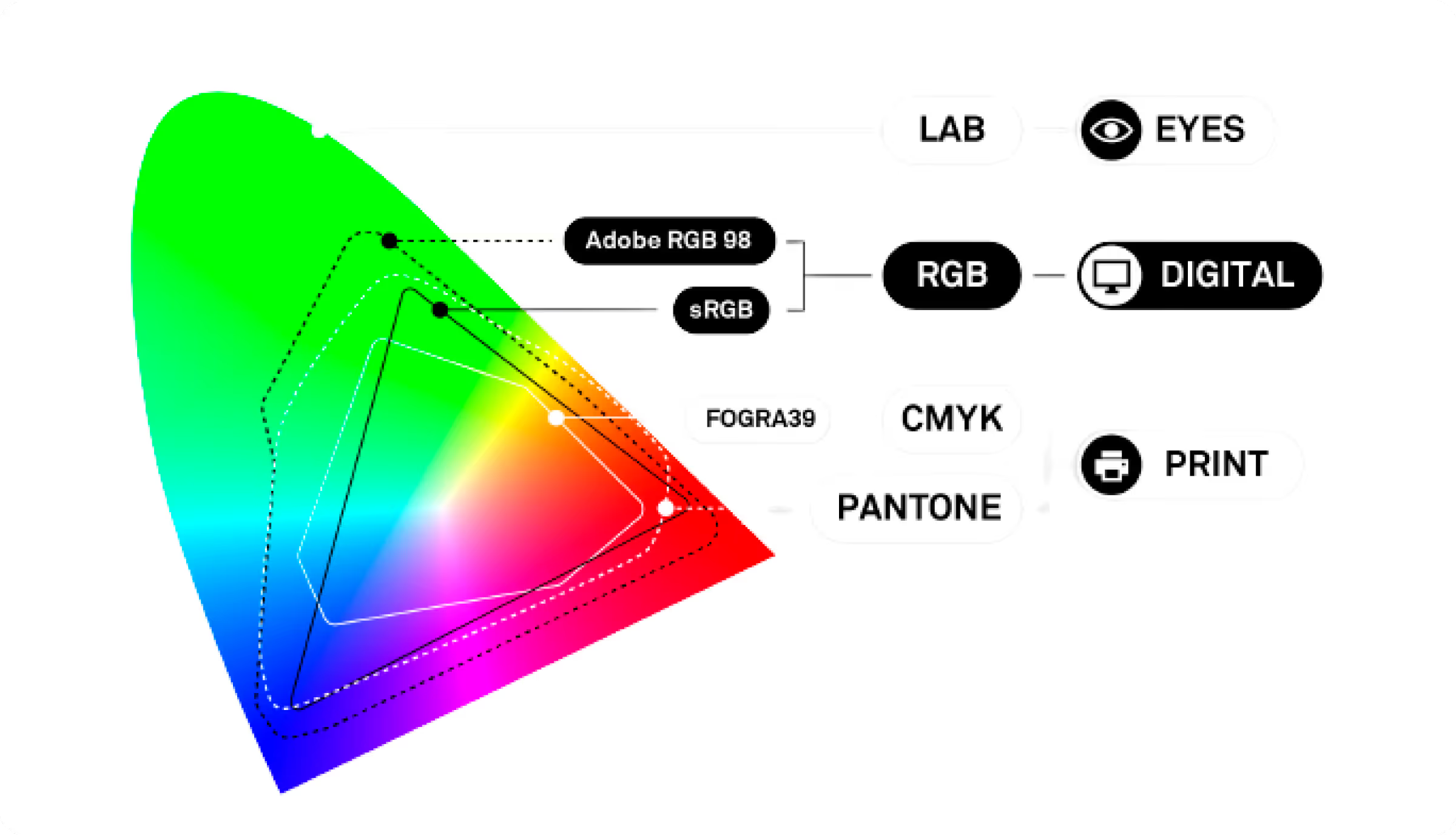
RGB Color Profile: The RGB color profile is used in digital environments, including computer monitors, TVs, digital cameras, or any device that generates light using three colors: R (Red), G (Green), and B (Blue).
Combining the light intensity of these three colors determines the specific color of a pixel. This part gets a bit technical, so please pay close attention. Each color channel (R, G, B) uses 8 bits to represent its light intensity. Since one pixel contains light information for all three channels, a single pixel contains 8x3 = 24 bits.
The formula above is for sRGB, but Adobe RGB (an RGB color space created by Adobe that allows for more accurate and vibrant colors than sRGB) contains 10 to 12 bits per R, G, and B color channel. Therefore, choosing Adobe RGB will result in a larger file size than sRGB, but the image quality will be superior.
CMYK Color Space: This is the color space that haunts designers the most because its colors are not as vibrant as RGB, and its color gamut is narrower. However, CMYK is one of the few color spaces suitable for printing, whereas RGB is not. CMYK stands for C: Cyan, M: Magenta, Y: Yellow, and K: Key (also understood as the intensity of black).
Similar to RGB, each color channel in CMYK contains 8 bits, but because it has 4 channels, a single CMYK pixel contains up to 32 bits of information. As a result, the CMYK color space is usually slightly heavier than RGB because it holds more data.
Grayscale: If your website features black-and-white photos, be smart and convert the image bitmap to Grayscale to minimize file size. Grayscale uses only 8 bits for shades of black. It is arguably the simplest and lightest color space in the family, though black-and-white images are used less frequently.
While it may have been a bit long-winded, you now understand the composition of an image. By being specific and detailed, you can minimize file size; sometimes, you can simply adjust the width and height to suit your specific use case. To reduce it further, choose the right format for your needs—JPG or PNG depending on whether you need a transparent background. If you have time, convert to WebP to ensure the lightest and highest-quality images, keeping Google happy.
For even more precision, if you are a professional designer proficient in Lightroom or Photoshop, you can intervene directly in the color space to ensure nothing is lost. In reality, few people go this far because reducing image size via color space is a bit overkill.

Ways to reduce image file size without sacrificing quality
As the title suggests, Markdao won't focus too much on specific software to remain impartial. Instead, we recommend a few solutions and software options, ranked by priority, for you to test and choose the one that best fits your needs. Don't worry; in the next section, Markdao will suggest some criteria for what makes a high-quality image.
There are many factors involved in reducing an image's file size. You need to address each criterion one by one and combine them effectively to achieve the best results. So, don't believe anyone who claims a single piece of software can handle every task you need for image optimization.
Choosing the right image compression format for the smallest file size
As mentioned above, if you are using these images for a website or internet purposes, determine whether the image requires a transparent background. If you need transparency, prioritize WebP, followed by PNG. However, if a transparent background is not required, prioritize reducing the file size of a JPG, as it offers the best performance.
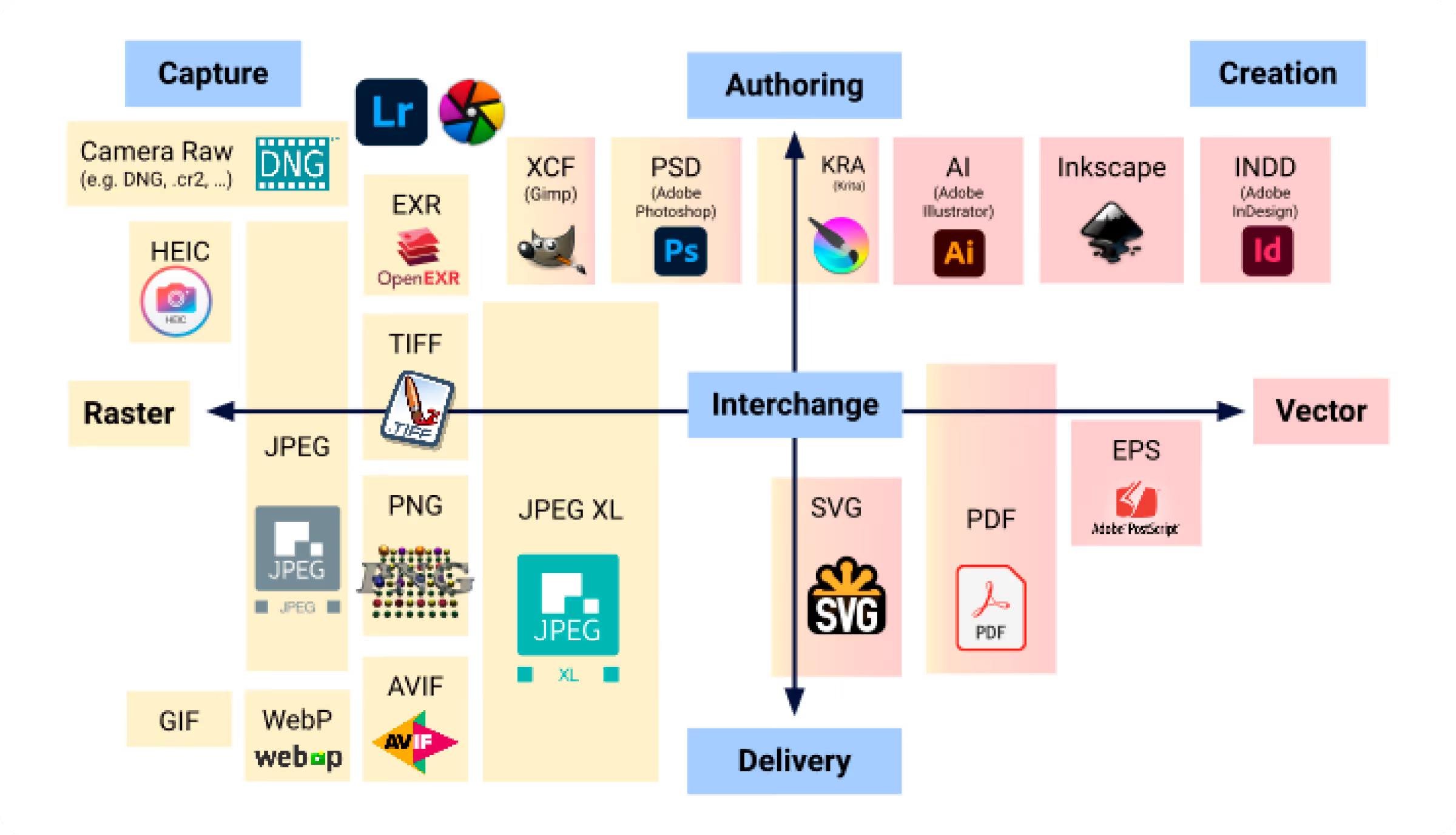
Software for changing compression formats
- Adobe Photoshop: If you have the resources, this is the premier software for changing image compression formats and selecting top-tier compression algorithms. You can customize the format and algorithm exactly as you like.
- GIMP: GIMP is a free, open-source application similar to Photoshop. It also provides tools for changing formats and compressing images with similar options.
- IrfanView: This is a free image viewer and editor for Windows. Beyond viewing and editing, IrfanView also allows you to change formats and compress images.
- XnConvert: XnConvert is a versatile, free image conversion tool for Windows, macOS, and Linux. It allows you to easily change formats, resize, and compress images.
- ImageOptim: ImageOptim is a free application for macOS that helps you optimally compress images and automatically remove unnecessary data to reduce file size.
- Reduce JPG image size with TinyPNG / TinyJPG: This is a free online service that allows you to effectively compress PNG and JPEG images without significant loss of quality.
- Online image size reduction solutions Squoosh: Squoosh is a web app developed by Google that lets you convert, compress, and optimize images online with customizable options.
Change image width and height
This is the most reliable way to reduce an image's file size because the total number of pixels in the image is significantly decreased. However, this reduction should be done appropriately; don't be too ambitious and shrink it so much that it becomes blurry and unusable. So, how much should you reduce it? It depends on where the image will be placed, so choose the dimensions accordingly.
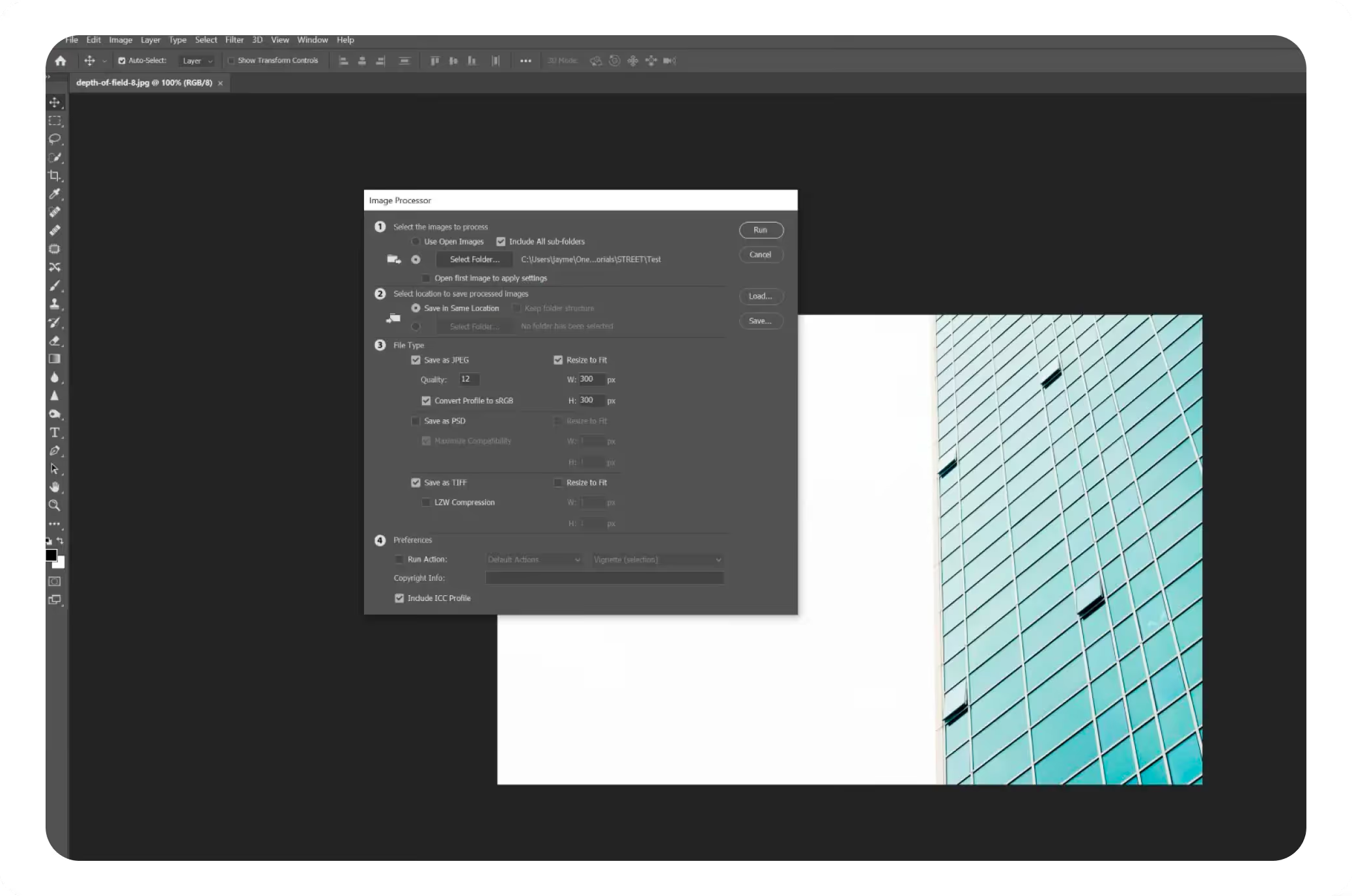
You can estimate the ratio to determine the precise dimensions. Typically, we consider how large the image will appear on a desktop screen relative to the display to make an appropriate choice. To do this, we need to know the pixel dimensions of the most common screen sizes:
- Standard 27-inch desktop monitor: 2,500 pixels
- 24-inch desktop monitor: 1,680 pixels ➝ 1,920 pixels
- Laptop screen: 1,200 pixels ➝ 1,920 pixels
- Tablet screen: 720 pixels ➝ 1,200 pixels
- Smartphone screen: 350 pixels ➝ 720 pixels
Based on this data, we can infer some reasonable dimension parameters for images on a website:
- Full-screen desktop image: 2,500 pixels wide
- Non-full-width centered website images: 2000 pixels wide
- Blog post illustrations: 1680 pixels wide
- Thumbnail images for news articles: 720 pixels wide
With today's modern technology, when building a website, we can select images tailored to different screen sizes. This allows us to load images with the appropriate quality and dimensions, ensuring the fastest loading speeds and the best visual experience for every device. At Markdao, we implement this practice, so feel free to give us a call if you need our help!
Popular software for resizing images:
- Adobe Photoshop: We've already mentioned it, so we won't repeat ourselves—lest you think we're just promoting it.
- GIMP
- IrfanView
- Canva
- Photoscape
- Preview (macOS)
Optimize Color Profiles and Remove Unnecessary Metadata
Furthermore, images contain a wealth of information related to the camera, shooting location, author, and copyright. If you are curious about what is hidden inside, you can search for the keyword "EXIF Photo Meta Data," which will display all the information an image can hold. This is a very important aspect, as some EXIF data can take up to 500KB—a significant amount of space.
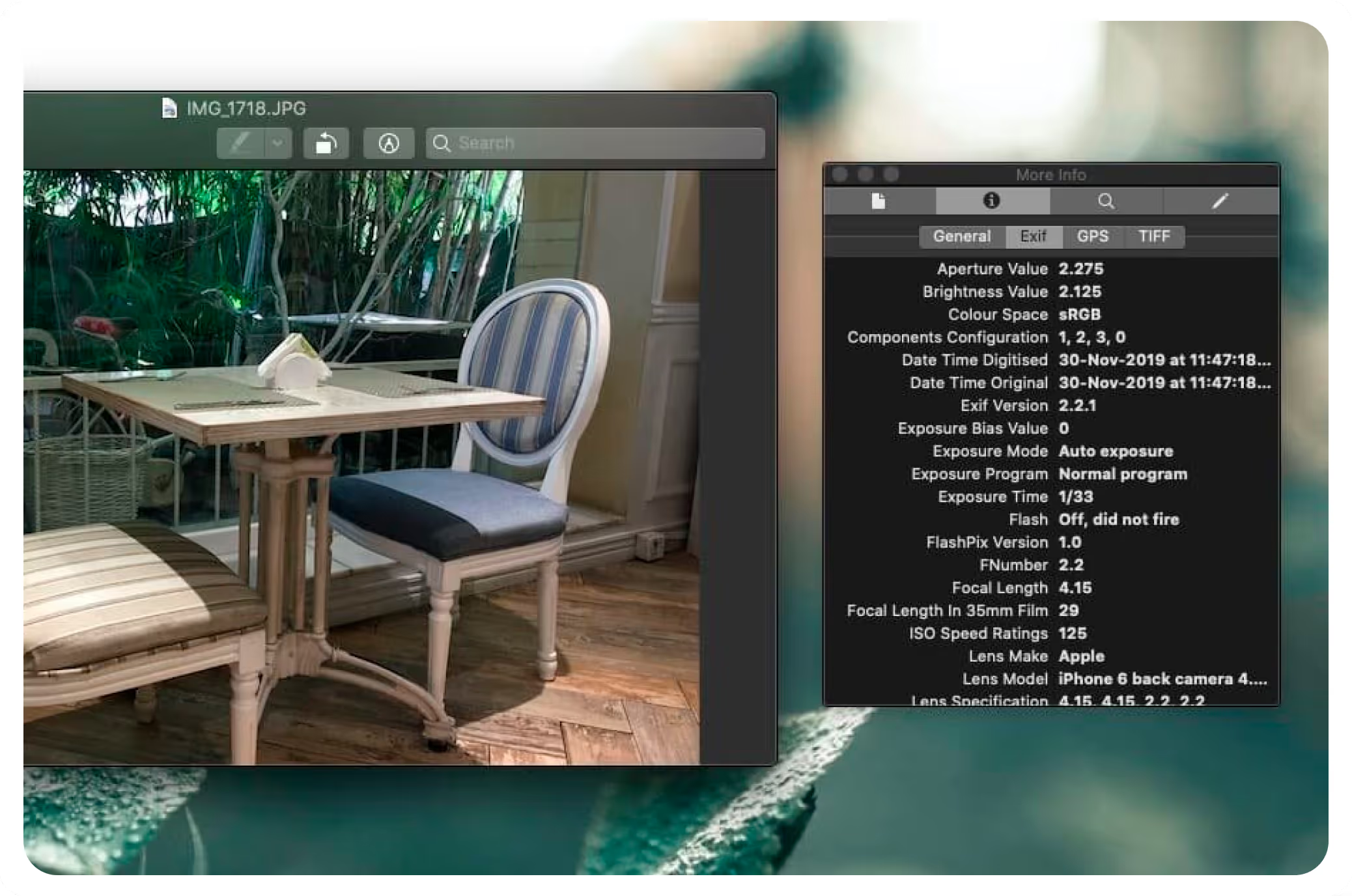
Here are some software tools that can remove EXIF data:
- ExifTool: ExifTool is a powerful and flexible tool that allows you to read, write, and edit image EXIF data. Beyond just removing EXIF data, it offers many other features for managing image metadata.
- Exif Purge: Exif Purge is a simple, user-friendly tool designed to strip EXIF data from images. It features a straightforward graphical user interface and allows you to process multiple images at once.
- ImageOptim: ImageOptim is not just an image compression tool; it also has the ability to remove EXIF data. It automatically strips away unnecessary information to reduce image file size.
- XnView: XnView is a free image viewer and manager for Windows, macOS, and Linux. It offers features for viewing and editing image Exif data, including the ability to remove it.
- Photoscape: Photoscape is a free image editing software for Windows and macOS.
Reducing image size using Selective Compression is one of the most optimal solutions for preserving image detail.
This is a complex solution, so not many popular software programs can perform it. To understand it better, let's dive in: Selective Compression is a method where the system identifies unimportant areas to compress, while important parts are compressed less or kept at their original quality. Specifically, the method works as follows:
- Images are processed based on color structure, where pixels with similar average color values in a given area are grouped into an average BIT code. Alternatively, it can rely on image structure or content analysis via AI or Machine Learning. Most AI-based image compression tools currently available are paid and not widely found on the market.
- The software then masks the areas where quality should not be reduced and performs image compression on the remaining parts.
- Texture and Detail Preservation: This method focuses on retaining important details and structures within the image during compression. Techniques such as adaptive quantization can be used to protect fine details.
- Rate-Distortion Optimization (RDO): RDO is used to adjust the level of lossy compression by balancing quality against file size. Important sections can be preserved at a higher quality level. If you use ImageOptim, one of the best tools currently available (exclusive to macOS), you will see an RDO adjustment slider within the software.
Some software that supports Selective Compression:
- Adobe Photoshop
- GIMP
- JPEGmini
- ImageOptim
- Tiny PNG / Tiny JPG
- Squoosh
- RIOT
Summary of all solutions for reducing image size while maintaining quality.
To summarize for those who just want the conclusion without the technical details: The best image compression method is Selective Compression. You can use ImageOptim on macOS or RIOT to perform this task. However, before taking this final step, ensure that:
- Images are in the correct required format
- Images are using the appropriate color profile and are as lightweight as possible
- Image dimensions are optimized for their intended use
- If possible, you can remove EXIF data beforehand using specialized software. If you use ImageOptim for selective compression, you don't need to remove EXIF data manually, as the software handles it automatically.
Thank you for reading this Markdao article. Although it is a bit long, we hope you now have the knowledge to provide a scientific answer whenever someone asks why their images are so heavy. Once you get used to the steps we have outlined, this process will be lightning-fast. Remember the final takeaway: it is not about which software you use, but the method you choose and what is most convenient for you. Follow Markdao to receive the latest high-quality articles, compiled and written by our content team based on real-world user needs.