


Want to upgrade your WordPress website without writing any code? Plugins are the perfect solution! With thousands of diverse plugins available, you can optimize SEO, boost page loading speeds, secure your data, and add countless features with just a few clicks. But how do you choose the right one? What are the best practices for installing and managing plugins in 2026? Join Markdao as we explore everything in this article to transform your website into a more powerful and professional tool!
What is a plugin?
A plugin is a piece of software that adds new features to your WordPress website without requiring you to edit the source code directly. If you think of WordPress as a house, plugins are the furniture or smart devices that make it more comfortable and functional.
Initially, WordPress was designed as a simple platform for blogging. However, thanks to its plugin system, it has become one of the most powerful website-building platforms in the world, supporting everything from news sites and e-commerce stores to large-scale corporate websites.
Plugins allow you to add features like SEO optimization, website speed enhancement, security, contact forms, and even integrated online payment systems without writing a single line of code.
Why should you use plugins in WordPress?
1. Enhance website functionality: Plugins help you expand your website's features flexibly. For example, if you want to optimize SEO, you can install the Yoast SEO or Rank Math plugin. If you want to secure your website, you can use Wordfence Security.
2. Easy to use, no coding knowledge required: Even if you don't have programming skills, you can install and activate plugins to add desired features to your website with just a few clicks.
3. Save time and money: Instead of hiring a developer to build a feature from scratch, you can find a pre-developed plugin and simply install it into WordPress. This saves a significant amount of time and money.
4. Continuous updates to keep up with trends: Plugin developers frequently update their products to improve features, fix bugs, and enhance security, helping your website run smoothly and securely.
Free vs. Premium Plugins – Which should you choose?
- Free plugins: Available in the WordPress Plugin Repository and can be installed directly from your WordPress dashboard. These plugins typically handle basic needs well but may have limited advanced features.
- Premium plugins: Provided by independent developers or sold on platforms like Codecanyon. Premium plugins usually offer more powerful features, frequent updates, and better customer support.
Choosing between free and premium plugins depends on your specific needs. If your website only requires basic functionality, a free plugin may be the right choice. However, if you want a more robust, stable, and well-supported solution, a premium plugin is a worthwhile investment.
Understanding plugins is the first step toward unlocking the full power of WordPress. In the next section, we will explore how to select and install the right plugins to ensure your website runs at its best.
How to find and choose the right plugins for your WordPress website
With over 60,000 plugins available in the WordPress repository and thousands more premium options on other platforms, finding the right one can be a challenge. Not every plugin is high-quality, and not every plugin is a good fit for your site. Here are the key criteria to help you find and select the best plugins for WordPress.
1. Where to find plugins?
You can search for and download plugins from these trusted sources:
- The WordPress Plugin Repository: This is the collection of the most popular free plugins, which can be installed directly from your WordPress dashboard.
- Plugin developer websites: Some developers offer premium plugins or upgraded versions directly on their official websites.
- Reputable plugin marketplaces like Codecanyon (Envato Market): This is one of the largest platforms offering premium plugins with a wide range of advanced features.
.avif)
Avoid downloading plugins from untrusted websites, as they may contain malware or viruses that could compromise your site's security.
2. Criteria for selecting quality plugins
When choosing a WordPress plugin, consider the following important criteria:
Ratings and reviews
- Plugins with high ratings (4-5 stars) are generally more reliable.
- Read reviews from actual users to see if the plugin has any bugs or issues.
Number of active installations
- Plugins with hundreds of thousands or millions of installations are typically quality-verified.
- If a plugin has only a few hundred downloads, proceed with caution.
Frequent updates
- The plugin must be compatible with the latest version of WordPress.
- Check the date of the last update – if a plugin hasn't been updated in a long time (over 6 months), it may be abandoned and no longer safe to use.
Developer support
- A quality plugin will offer good customer support, including documentation, help forums, or email assistance.
- Check the Support section on the plugin's WordPress page to see if the developer responds promptly.
Compatibility with your website
- Some plugins may conflict with your theme or other plugins on your site.
- Before installing a new plugin, verify that it is compatible with your theme and other essential plugins.
If your website is a personal blog or a small news site, free plugins may be sufficient. However, if you are running a business website, an e-commerce store, or a large-scale site, using premium plugins will provide a better experience.
3. Recommended popular WordPress plugins
Depending on your needs, here are some highly-rated plugins for various purposes:
- SEO optimization: Yoast SEO, Rank Math
- Website security: Wordfence Security, iThemes Security
- Website performance: WP Rocket, LiteSpeed Cache
- Comment spam protection: Akismet Anti-Spam
- Contact forms: Contact Form 7, WPForms
- Google Analytics integration: MonsterInsights
- Drag-and-drop page building: Elementor, WPBakery Page Builder
- E-commerce: WooCommerce
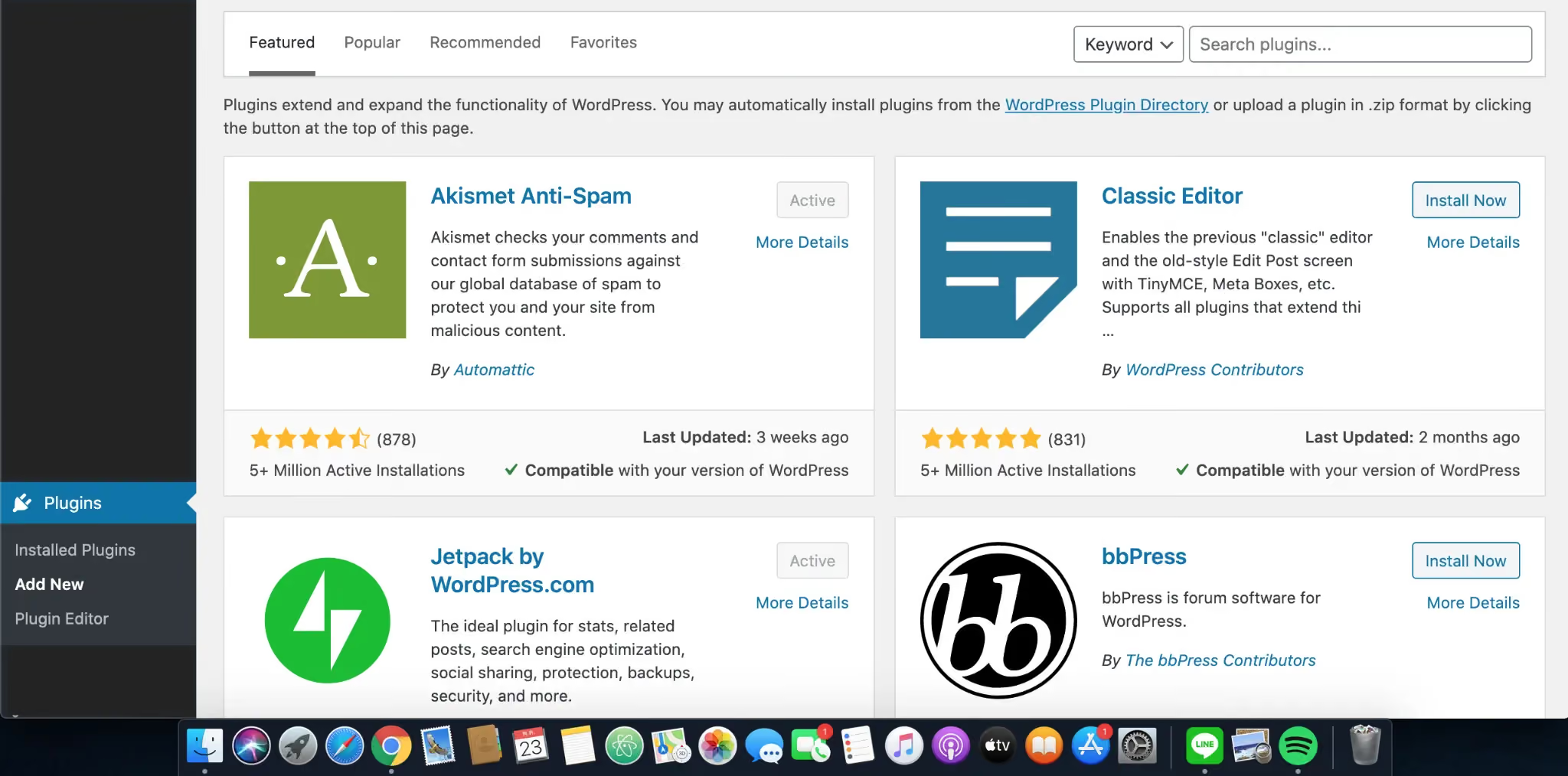
If you are still considering which plugins to install on your WordPress website, you can refer to the following: Top 21 WordPress Plugins researched and compiled by Markdao.
3 Ways to Install WordPress Plugins (2026 Guide)
Once you have selected the right plugin, the next step is to install and activate it on your WordPress website. Below is a detailed guide on how to install plugins using the three most common methods in 2026.
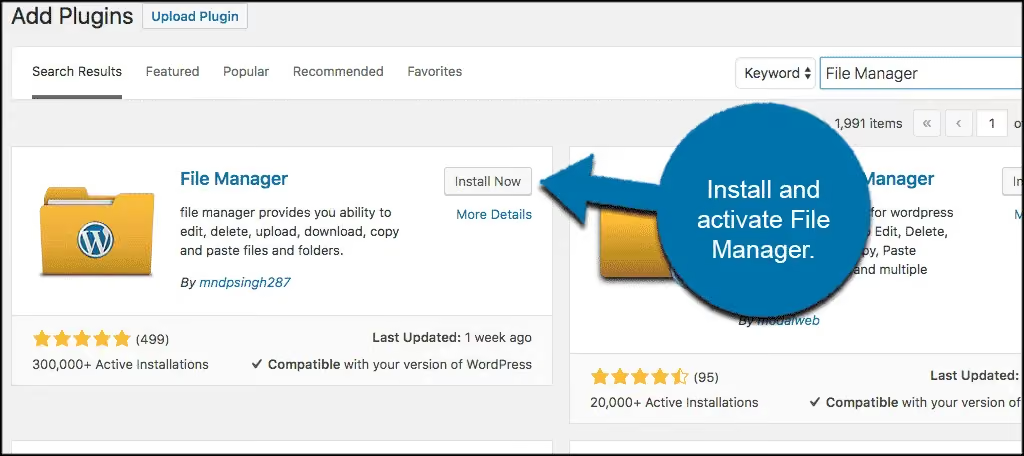
1. Install plugins directly from the WordPress repository
This is the fastest and simplest way to install free plugins from the official WordPress plugin directory.
Step 1: Access your WordPress dashboard
- Log in to your website's admin area (Dashboard).
- From the left-hand menu, select Plugins > Add New.
Step 2: Search for your desired plugin
- In the search bar, enter the name of the plugin you want to install.
- When the plugin appears, click Install Now.
Step 3: Activate the plugin
- Once the installation is complete, click Activate to start using the plugin.
- Some plugins may require configuration; please follow the plugin's instructions to complete the setup.

Pros: Fast, easy to do, and no file downloads required.
Cons: Only applies to plugins available in the WordPress repository.
2. Install plugins by uploading a .zip file
Use this method when you want to install premium plugins or plugins from external sources not found in the WordPress repository.
Step 1: Download the plugin file to your computer
- If the plugin is a premium one or downloaded from another website, download the .zip file.
- For example: You can purchase plugins on Codecanyon.net, Themeforest, or the developer's official website.
Step 2: Upload the plugin to WordPress
- Go to Dashboard > Plugins > Add New.
- Click the Upload Plugin button at the top.
- Click Choose File and select the .zip file you just downloaded.
- Click Install Now.
Step 3: Activate the plugin
- Once the installation is successful, click on Activate Plugin.
- Proceed with configuration if necessary.
Pros: Allows for the installation of premium plugins and plugins from external sources.
Cons: You must manually search for and download the plugin to your computer before installation.
3. Installing plugins via FTP upload
This method is used when you encounter errors while downloading plugins via the WordPress library or when your hosting has upload size limitations.
Step 1: Connect to the server using an FTP Client
- Download and install FileZilla or WinSCP to connect to your server.
- Enter the FTP credentials (host, username, password) provided by your hosting provider.
Step 2: Upload the plugin to the WordPress directory
- Download the plugin to your computer and extract the .zip file (after unzipping, you will see a folder named plugin).
- Navigate to the wp-content/plugins/ directory on your server.
- Upload the unzipped plugin folder into the /plugins/directory.
Step 3: Activate the plugin in WordPress
- Return to your WordPress admin dashboard.
- Go to Plugins > Installed Plugins.
- Find the plugin you just uploaded and click Activate.
Pros: A solution for large plugins or when you encounter upload errors.
Cons: More complex, requires the use of an FTP client.
Installing plugins in WordPress is straightforward and can be done in several ways. If you only need free plugins, use the search and install method directly from the WordPress library. For premium plugins, use the .zip file upload method. If you encounter errors or need to install a large plugin, the FTP installation method is the best choice.
Managing and removing unnecessary plugins
Managing plugins is crucial for the performance, security, and stability of your WordPress website. Without proper control, too many unnecessary plugins can slow down your site and create security vulnerabilities. Below is a detailed guide on how to safely manage, deactivate, and delete plugins.
1. Manage plugins effectively to optimize your website
Review and evaluate the plugins currently in use
- Go to Dashboard > Plugins > Installed Plugins to view the list of all plugins.
- Review each plugin and ask yourself:
- Is this plugin truly necessary?
- Does it affect page load speed?
- Is there a more optimized plugin available to replace it?
- Is the plugin still being regularly updated by the developer?
- If a plugin is no longer needed or is no longer being updated, consider removing it.
Update plugins regularly
- Plugins should be updated frequently to patch vulnerabilities and ensure compatibility with the latest version of WordPress.
- Go to Dashboard > Plugins; if an update is available, you will see an "Update now" notification next to the plugin.
Note: Before updating important plugins, back up your website to avoid potential errors.
2. How to temporarily deactivate a plugin
Before deleting a plugin, you should deactivate it first to check if your website is affected.
Deactivating plugins in WordPress
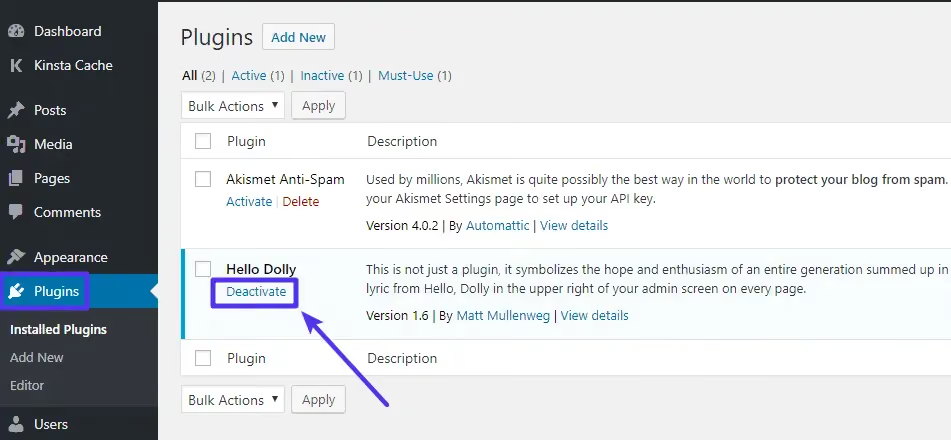
- Go to Dashboard > Plugins > Installed Plugins.
- Find the plugin you want to disable and click Deactivate.
- Check if your website is functioning normally.
If there are no issues, you can proceed to delete the plugin.
If the website encounters errors after deactivation, reactivate the plugin to resolve them.
Note: Some plugins (such as cache or security plugins) may affect your website configuration when disabled.
3. How to delete unnecessary plugins
If a plugin is no longer in use or needed, you should remove it completely from WordPress to avoid slowing down your website.
Step 1: Delete the plugin in WordPress
- Go to Dashboard > Plugins > Installed Plugins.
- Find the plugin you want to delete and click Deactivate first.
- After deactivating, click Delete.
WordPress will ask for confirmation; click OK to complete.
Step 2: Check and clean up residual data
- Some plugins leave behind configuration files and database data after deletion.
- To clean up data:
- Use a database management plugin like WP-Optimize to clear out redundant data.
- Check the wp-content/plugins/ directory on your hosting and delete manually if necessary.
Note: If the plugin you are deleting stores important data (e.g., order history, SEO data, contact forms), please back it up before deletion.
Conclusion
Plugins play a vital role in extending functionality and optimizing performance for WordPress websites. Understanding what plugins are, along with how to find, install, manage, and remove unnecessary ones, will help you build a more stable, secure, and faster-performing website.
When choosing plugins, prioritize high-quality options with good ratings that are updated regularly to ensure compatibility with WordPress. At the same time, regularly check and remove unnecessary plugins to avoid slowing down your site. If you want to build a professional website and optimize SEO effectively, don't forget to incorporate the right supporting plugins.